Best AI Excel Tools (2026): 10 Picks for Formulas, Pivots and Analysis
The best AI Excel tool for most people is Copilot, now built into Microsoft 365 Personal and Family. Claude for Excel is the pick for financial models, GPTExcel and Numerous.ai are cheap helpers for formulas and bulk cell work, and Julius AI or Better Analyst handle deeper analysis. Here are 10 picks with October 2026 pricing.
The best AI Excel tool for most people in 2026 is Copilot in Excel, which is now included with Microsoft 365 Personal and Family, so many Excel users already have it. For building and auditing financial models, Claude for Excel is the strongest add-in. If you want a cheap formula helper, use GPTExcel; for AI applied to thousands of cells at once, use Numerous.ai; and for real statistics on spreadsheet data, upload the file to Julius AI.
AI for Excel has split into four kinds of tool: assistants built into the spreadsheet, add-ins from AI labs, cell functions that run a prompt down a column, and standalone analysts you feed a file. This guide covers the 10 best AI Excel tools across all four, plus Google Sheets options, based on official pricing pages, help documentation and public user feedback as of October 2026, not hands-on testing.






Quick picks: the best AI for Excel by task
Best built-in Excel AI: Copilot in Excel, from $9.99 a month with Microsoft 365 Personal.
Best for financial models: Claude for Excel, on all paid Claude plans.
Best for Google Sheets: Gemini in Sheets, with the
=AI()function.Best for formulas and analysis outside Excel: ChatGPT.
Best cheap formula and pivot helper: GPTExcel, free or $9 a month.
Best for bulk AI in cells: Numerous.ai, in Excel and Google Sheets.
Best for dashboards from spreadsheets: Better Analyst, formerly Formula Bot.
Best for statistics and charts: Julius AI.
Best for messy marketing exports: Anomaly AI.
Best for explained charts and slides: ChartPixel.
All 10 AI Excel tools at a glance
Prices are US list prices as of October 2026 unless noted. Several vendors only publish annual-billing rates, so check each official page before you subscribe.
| Tool | Best for | Works inside Excel? | Free plan | Starting price |
|---|---|---|---|---|
| Copilot in Excel | Everyday Excel work | Yes, built in | No (limited free Copilot chat) | $9.99/mo (Microsoft 365 Personal) |
| Claude for Excel | Financial models, audits | Yes, add-in | No (paid plans) | $20/mo ($17 annual) |
| Gemini in Sheets | Google Sheets users | Google Sheets | No (eligible plan needed) | Google AI Pro $19.99/mo |
| ChatGPT | Formulas, file analysis | No (upload files) | Yes, capped | Go $8/mo, Plus $20/mo |
| GPTExcel | Formulas, pivots, VBA | No (web app) | Yes, 50 credits/mo | $9/mo |
| Numerous.ai | AI functions across many cells | Yes, plus Sheets | 7-day trial | $10/mo (annual) |
| Better Analyst | Dashboards, alerts | Connects to sheets | Yes, 10 messages/mo | $20/mo (annual) |
| Julius AI | Statistics and charts | No (upload files) | Yes, limited | About $20/mo (check site) |
| Anomaly AI | Ad and marketing exports | Builds Excel files | Yes, 50 credits/mo | $25/mo |
| ChartPixel | Explained charts, slides | No (upload files) | Yes, 10 prompts | From AU$15/mo (annual) |
What changed for AI in Excel in 2026
Copilot moved into consumer plans. Microsoft 365 Personal ($9.99 a month or $99.99 a year) and Family ($12.99 or $129.99) include Copilot in the Excel desktop app, per Microsoft's plan comparison. Premium ($19.99) adds agentic research and analytics.
The `=COPILOT()` function is gone. Microsoft retired the preview cell function on September 14, 2026. Existing results stay cached, but recalculating returns
#NAME?, according to the COPILOT function support article. Microsoft points users to the Copilot pane instead.AI labs built native add-ins. Claude for Excel is generally available on all paid Claude plans, installed from the Microsoft marketplace.
Google Sheets got a cell function.
=AI()(or=Gemini()) runs a prompt over a range for summaries, categories and sentiment.
AI built into Excel and Google Sheets
1. Copilot in Excel: best built-in AI for Excel
Microsoft Copilot in Excel builds and edits workbooks from plain-English requests. According to Microsoft's Copilot in Excel guide, it can add and rename sheets, apply conditional formatting and data validation, write formulas and calculations across sheets, create charts and PivotTables linked to your data, sort and filter, summarize trends and outliers, fetch web information with citations, and import data from other workbooks in OneDrive, SharePoint or on your computer.
It works in three modes: Allow editing (the default, for multi-step changes), Plan (it proposes an approach for you to approve) and Chat only (analysis without touching the workbook). Windows, Mac and the web support all three; phones support chat only.
Pros: native, included in plans you may already have, Plan mode for safe changes, custom skills for repeat tasks.
Cons: requires AutoSave (so files in OneDrive or SharePoint), the old cell function is retired, usage limits are described only as "higher than free".
Who it suits: anyone who lives in Excel and wants help without leaving it.
2. Claude for Excel: best for financial models
Claude for Excel is Anthropic's add-in, part of Claude for Microsoft 365 alongside Word, PowerPoint and Outlook. You can ask about any cell, update assumptions without breaking formulas, and build models from scratch, including pulling numbers from a Word brief into formulas across several tabs. Edits show up as highlighted cells you review, and nothing is saved until you approve it.
It is available on all paid Claude plans: Pro is $20 a month ($17 billed annually), and Team Standard is $25 per seat ($20 annually), per Anthropic's pricing page. Companies on Amazon Bedrock or Microsoft Foundry can connect through their cloud provider instead. Our Claude review covers the rest of the plan.
Pros: careful reasoning, preserves formula logic, transparent highlighted edits.
Cons: no free access to the add-in, heavy modeling eats into usage limits.
Who it suits: finance, FP&A, consultants and anyone auditing someone else's workbook.
3. Gemini in Google Sheets: best for Sheets users
If your spreadsheets live in Google Sheets, Gemini is the equivalent of Copilot. The side panel creates tables and formulas, fixes formula errors, builds charts, generates insights, and performs actions such as pivot tables, dropdowns, filters and conditional formatting after showing a preview you approve. It can also run read-only queries on connected BigQuery data.
The =AI("prompt", range) function adds generative text in cells: summarize feedback, tag sentiment, or categorize rows. Per Google's AI function help page, it returns text only, cannot see the rest of the sheet, cannot be nested inside other functions, and generates only the first 350 selected cells at a time. Both features need an eligible Google Workspace or Google AI plan.
Pros: preview-and-apply edits, cell function for bulk text work, BigQuery access.
Cons: paid plan required, daily generation limits on the AI function.
AI assistants and formula generators
4. ChatGPT: best for formulas and file analysis outside Excel
ChatGPT remains the most common way people get AI help with spreadsheets: describe what you want and paste the column layout, and it writes the formula and explains it. Upload a workbook and it runs Python to clean data, compute statistics, build charts and hand back a new file. It does not edit your live workbook, so you copy formulas back yourself.
The free plan works for occasional formulas; Go ($8 a month) and Plus ($20 a month) raise upload and analysis limits. Compare the Microsoft and OpenAI assistants in our Microsoft Copilot vs ChatGPT guide.
Pros: great explanations, handles messy multi-sheet files, free to start.
Cons: copy-paste workflow, can invent functions that do not exist in your Excel version.
5. GPTExcel: best cheap formula and pivot helper
GPTExcel is a web app built for spreadsheet chores. Upload an Excel or CSV file and ask questions to get formulas, summaries and charts, or use its Pivot Builder and Slide Deck Builder agents. It also generates VBA scripts, SQL, regex and templates. The company says more than 1.6 million people use it.
Per GPTExcel's pricing page, Free includes 50 credits a month and 5 MB files. Pro is $9 a month for about 3,000 credits (refreshed weekly) and 50 MB files, and Pro Plus is $18 a month for about 10,000 credits, 100 MB files and an Expert model that costs 10 credits a message.
Pros: inexpensive, covers formulas, pivots, scripts and slides, clear per-message credit costs.
Cons: works outside Excel, weekly credits do not roll over.
6. Numerous.ai: best for bulk AI in cells
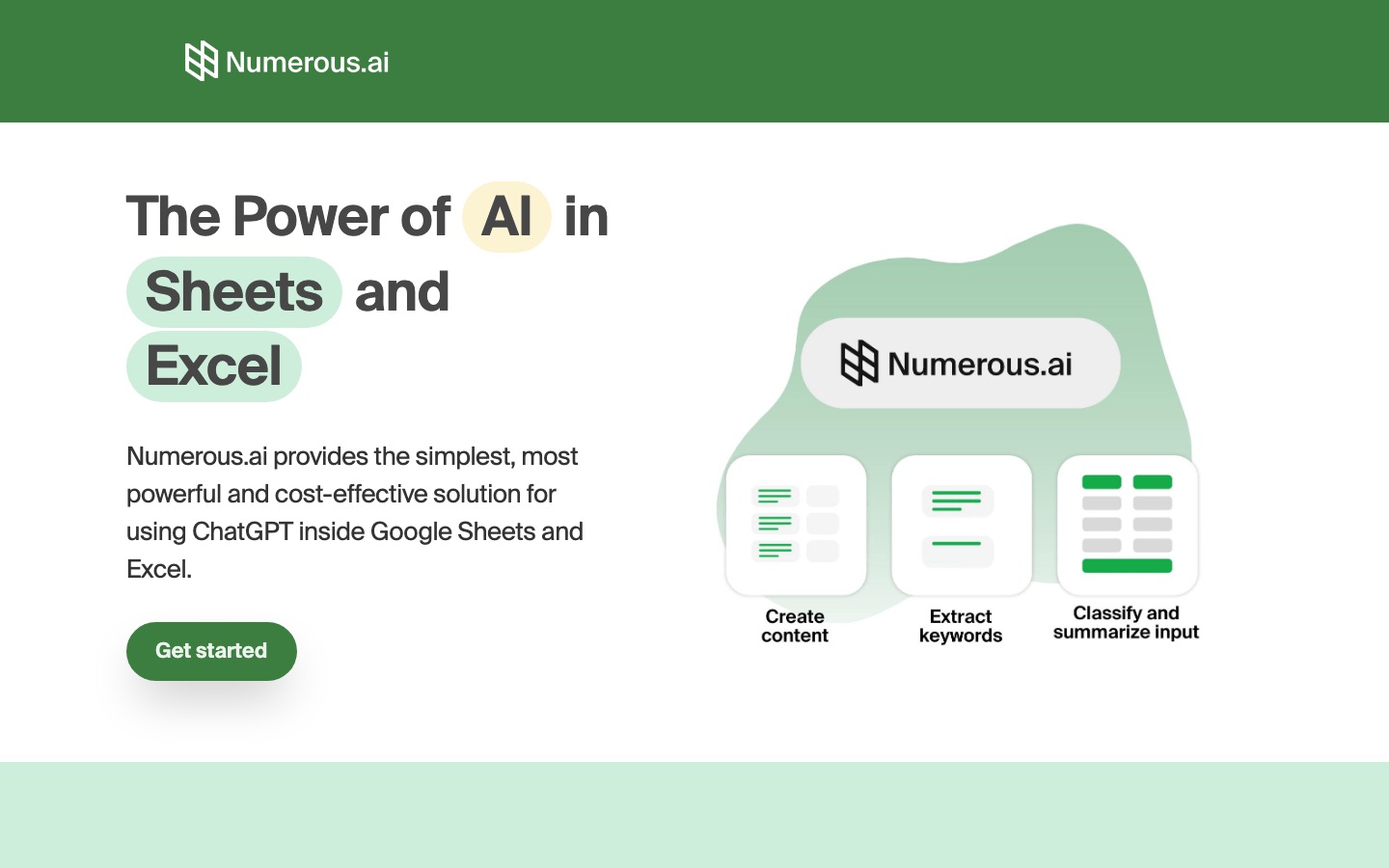
Numerous.ai adds an =AI function to Excel and Google Sheets, so you can write, summarize, classify or clean text across thousands of rows by filling a formula down a column. You do not need your own API key, and caching means recalculating the sheet does not rerun identical requests. Since Microsoft retired =COPILOT(), it is one of the simplest ways to get prompt-in-a-cell behavior in Excel.
Plans start at $10 a month billed annually with a 7-day free trial, per Numerous.ai's pricing page; team plans are priced per user.
Pros: works in both Excel and Sheets, no API keys, results stay next to source data.
Cons: character limits on lower plans, no permanent free tier.
Who it suits: marketers, ops teams and analysts tagging leads, products, tickets or survey answers.
AI data analysts that work on spreadsheets
7. Better Analyst: best for dashboards from spreadsheets
Better Analyst started life as Formula Bot, a popular Excel formula generator, and now handles the whole path from spreadsheet to shared dashboard. Connect Google Sheets, Airtable, databases or ad platforms, ask a question, and get written analysis with charts plus the SQL or Python behind it. Free covers 10 chat messages and one data source a month; Pro is $20 a month billed annually, and Team is $119 a month billed annually for five people.
Pros: shows its code, dashboards and Slack or email alerts, many connectors.
Cons: small free tier, annual billing for the listed prices.
8. Julius AI: best for statistics and charts
Julius AI is what to use when the question is bigger than a formula: "is this trend significant?", "forecast next quarter", "cluster these customers". Upload the workbook, ask in plain English, and Julius writes and runs Python, then returns charts and a written explanation. Saved notebooks rerun the same analysis on next month's file, and results export to PowerPoint or Google Slides. Read the full Julius AI review for pricing caveats.
Pros: regression, forecasting and cohort analysis without code, reusable notebooks.
Cons: public complaints about credits running out quickly, results still need checking.
9. Anomaly AI: best for messy marketing exports
Anomaly AI handles oversized ad exports and multi-tab spreadsheets that slow Excel down. It connects to Excel, CSV, Google Sheets, GA4 and ad platforms, cleans the data, and produces dashboards and Excel builds with visible calculations. Free includes 50 credits a month; Pro is $25 a month.
Pros: checkable calculations, handles big files, 50% off for students and nonprofits.
Cons: credits expire monthly, younger company.
10. ChartPixel: best for explained charts and slides
ChartPixel turns an Excel or CSV file into cleaned data, charts and plain-language takeaways backed by statistical checks, then exports to PowerPoint in one click. It suits students, researchers and small business owners who need to explain a dataset rather than model it. Free includes one import and 10 chat prompts; paid plans start at about AU$15 a month billed annually.
Pros: explanations with every chart, beginner friendly, does not train on user data (per the company).
Cons: row and column caps on lower plans.
Need to get a table out of a photo or scanned page first? Free converters such as JPG2Excel use OCR to turn an image of a table into an editable spreadsheet.
How to use AI in Excel: 5 prompts that work
Whichever tool you pick, better prompts mean fewer broken formulas. Name the columns, the sheet and the expected output.
Write a lookup:
In Sheet1, column A has order IDs and column D has totals. In Sheet2 column A, return the total for each order ID, and show "Not found" if missing.Explain an inherited formula:
Explain this formula step by step and tell me what breaks if a row is inserted above row 2.Build a pivot:
Create a PivotTable of revenue by region and month from the Sales table, sorted by total revenue.Clean data:
Split the Full Name column into First and Last, trim spaces, and flag duplicate emails.Analyze:
Which three products drove the change in margin between Q2 and Q3? Show a chart and the calculation.
Common mistakes with AI Excel tools
Not checking version compatibility. AI may suggest
XLOOKUP,LETor dynamic arrays that older Excel versions do not support. Say which version you use.Letting AI edit the only copy. Work on a copy, or use Copilot's Plan mode and Claude's highlighted edits to review changes.
Leaving AI formulas live. Prompt-in-a-cell results can change on recalculation. Convert finished results to values.
Uploading confidential workbooks to consumer tools. Check data policies, and prefer business plans for client or payroll data.
For broader analysis beyond spreadsheets, including notebooks and BI platforms, see our guide to the best AI data analysis tools. Students can find more helpers in the best AI tools for students.
FAQ
What is the best AI for Excel?
For most users, Copilot in Excel is the best AI for Excel because it is built in, edits the workbook directly, and comes with Microsoft 365 Personal and Family. Claude for Excel is better for complex financial models. GPTExcel is the cheapest dedicated formula helper, and Julius AI is best when you need statistics rather than formulas.
Is there a free AI for Excel?
Yes, with limits. GPTExcel's free plan gives 50 credits a month, Better Analyst and ChartPixel have small free tiers, and ChatGPT's free plan can write formulas and analyze uploaded files. Copilot inside the Excel app needs a paid Microsoft 365 plan; Microsoft 365 Basic does not include AI features.
Does Excel have AI built in?
Yes. Copilot is built into Excel for Microsoft 365 subscribers on Personal, Family, Premium and eligible business plans. It writes formulas, builds PivotTables and charts, and analyzes data. It needs AutoSave turned on, which means the file must be stored in OneDrive or SharePoint.
What happened to the COPILOT function in Excel?
Microsoft discontinued the =COPILOT() function on September 14, 2026. It had been a preview feature in the Frontier and Insider programs. Cached results remain, but any recalculated cell returns a #NAME? error. Microsoft recommends the Copilot pane instead, and add-ins like Numerous.ai offer a similar prompt-in-a-cell function.
Can ChatGPT write Excel formulas?
Yes. Describe your columns and the result you want, and ChatGPT writes the formula and explains each part. Mention your Excel version so it avoids functions you do not have, and test the formula on a few rows. For edits inside the workbook itself, Copilot or Claude for Excel is more convenient.
Is Copilot in Excel worth it?
If you already pay for Microsoft 365 Personal or Family, yes, because it is included. If you would subscribe only for Copilot, compare it with Claude Pro ($20 a month) for heavier modeling, or GPTExcel ($9) for formulas. Business users need a qualifying Microsoft 365 Copilot license, so check Microsoft's current pricing.
Bottom line
Start with what you already have. If you pay for Microsoft 365, Copilot in Excel is the best AI Excel tool and costs nothing extra. Add Claude for Excel if you build or audit serious models. Use Gemini if you work in Google Sheets. For specific jobs, GPTExcel is the cheapest formula helper, Numerous.ai fills AI down a column, and Julius AI or Better Analyst take over when you need statistics or dashboards.
Browse more spreadsheet and workflow helpers in the AI productivity category, and analysis tools in research. Building an AI Excel tool we have missed? Submit it for a listing.