How to Make a Song with Suno (2026): A Step-by-Step Guide for v6
A practical guide to making a song with Suno AI in 2026: choosing a plan, Simple vs Advanced mode, writing lyrics with meta tags like [Verse] and [Chorus], style prompts that work, personas, extend, cover, remaster, Suno Studio, stems, downloads and who owns the result.
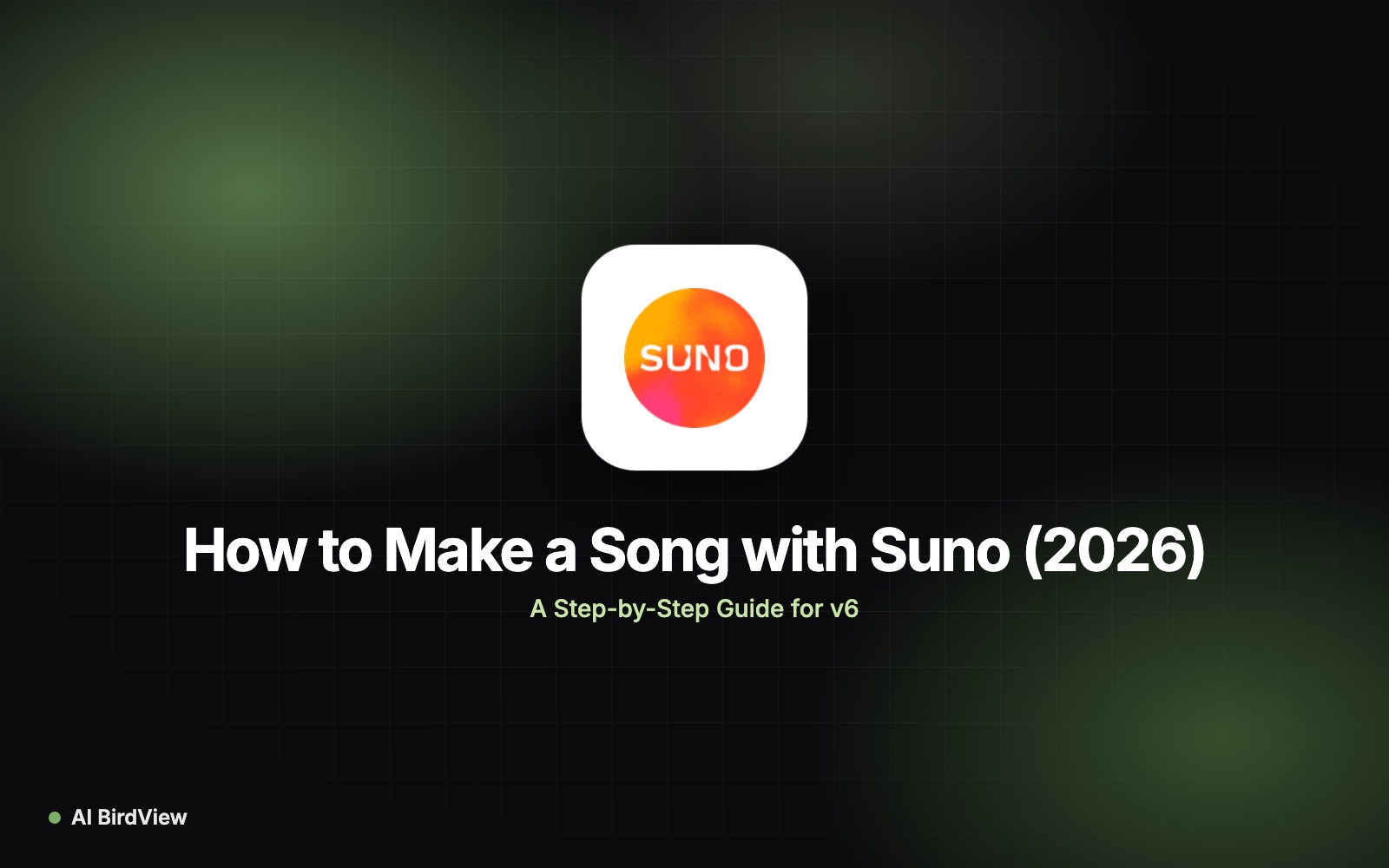
To make a song with Suno, sign in at suno.com, click Create, describe the song in Simple mode or paste your own lyrics and a style prompt in Advanced mode, then generate. Each generation returns two versions in under a minute. From there you can extend, edit a section, cover or remaster the best take, and download it. To own the song and use it commercially, create it on a paid Pro or Premier plan.
That is the short version of how to use Suno AI. The longer version is where the quality comes from: structuring lyrics with meta tags, writing style prompts the v6 models actually follow, and knowing which edit tool fixes which problem. This tutorial follows Suno's official help center and the September 2026 v6 release, and it reflects the download limits that took effect on September 3, 2026. Menus move around often, so if a button has a slightly different label in your account, look for the closest match.

How to make a song with Suno: a five-minute quick start
Go to suno.com or open the Suno mobile app and sign in.
Click Create.
Choose Simple and type a one-line idea, for example: "An upbeat indie pop song about moving to a new city, female vocals".
Click Create and wait for two versions to appear in your library.
Play both, keep the better one, and use Extend or Edit to improve it.
That gets you a song. The rest of this guide is about getting a song you actually like.
Step 1: Create an account and pick a plan
Suno's free plan is enough to learn, but the plan you are on when a song is created decides who owns it. Here is what each plan includes, according to the official Suno pricing page in October 2026.
| Plan | Price | Credits | Models | Downloads | Rights |
|---|---|---|---|---|---|
| Free | $0 | 50 per day (about 10 songs) | v6-mini | None monthly | Suno owns songs; non-commercial use |
| Pro | $10/mo or $8/mo yearly | 2,500 per month | v6, v6-wild, v6-mini | 20 per month | You own songs; commercial use |
| Premier | $30/mo or $24/mo yearly | 10,000 per month | v6, v6-wild, v6-mini | 60 per month, uncapped in Studio | You own songs; commercial use |
One generation costs 10 credits and returns two songs. Subscription credits do not roll over, and Max Mode, stem separation and other Studio actions cost extra credits. Pro and Premier both let you record or upload your own voice and create custom models; Premier adds Suno Studio, a third stem separation type and longer audio uploads (up to 30 minutes).
Tip: if you plan to release a song, subscribe before you write it. Suno's help center ties ownership to the plan at creation, and it does not say an upgrade converts older free songs.
Step 2: Choose Simple or Advanced mode
In the v6 Create screen you will see Simple, Advanced and Sounds. Advanced is the explicit-control mode that older tutorials call Custom mode.
Simple mode
You describe the song in one sentence and Suno writes the lyrics and style for you. It is the fastest way to explore ideas, and v6 can interpret requests like "make this a cover" or "continue this song" without you picking the tool first. You can open the song details afterwards to see the lyrics and style prompt Suno chose, then reuse them in Advanced.
Advanced mode
You fill in separate fields for Lyrics, Styles and Title, choose the model at the top of the panel, and open More Options for sliders. Use Advanced whenever you care about the words, the structure or a specific sound.
Sounds
Sounds is for loops, one-shots and short audio elements rather than full songs, useful if you produce in a DAW.
Step 3: Write lyrics with Suno meta tags
Meta tags are short labels in square brackets that tell Suno how your song is structured. They go in the Lyrics field, on their own line, above the lines they describe. Sound descriptions such as genre and instruments belong in the Styles field instead.
The structure tags that matter most
[Intro] and [Outro]: the opening and closing sections. Add [Instrumental] under [Intro] if you want no vocals there.
[Verse]: the storytelling sections. Number them ([Verse 1], [Verse 2]) to keep things clear.
[Pre-Chorus]: a short build into the chorus.
[Chorus]: the hook. Repeat the same chorus text each time so Suno repeats the melody.
[Bridge]: a contrasting section before the final chorus.
[Instrumental] or [Break]: a section with no vocals, such as a solo.
[End]: a hint to finish the song cleanly instead of fading or looping.
Example lyric layout
[Intro] then [Instrumental] on the next line (no lyrics)
[Verse 1] Boxes in the hallway, keys that do not fit / Coffee in a paper cup, a window full of brick
[Pre-Chorus] Every street is new tonight
[Chorus] This city doesn't know my name, but it will / I'm loud enough to fill these empty hills
[Verse 2] new lines that continue the story
[Chorus] the exact same chorus text again
[Bridge] two to four contrasting lines
[Chorus], then [Outro] and [End]
Write the lyrics line by line in the actual field, with each tag on its own line. Keep tags short. Long descriptive tags such as "[Chorus with soaring emotional female vocal and big drums]" can end up sung as lyrics. If you want a vocal change, a brief cue like [Chorus: female vocal] or [Whispered] is the most you should add.
Lyric writing tips
Keep lines singable. Six to ten syllables per line, with similar length across a verse, gives Suno a clearer rhythm.
Use rhyme and repetition. A repeated hook line is what makes a chorus memorable.
Spell out tricky words phonetically if Suno mispronounces names or slang.
Leave lyrics empty for instrumentals and write "instrumental" in the Styles field.
Do not paste copyrighted lyrics. Suno screens uploaded lyrics and audio for unauthorized use, and you would not own the result anyway.
Step 4: Write a style prompt that v6 follows
The Styles field describes how the song sounds. The most reliable format is a short, comma-separated list layered in this order: genre, mood, tempo or groove, key instruments, vocal type, production feel. Avoid artist names; describe the sound instead.
Example style prompts
Indie pop: "indie pop, bright, 115 bpm, jangly guitars, warm bass, female vocals, airy harmonies, modern clean mix"
Lo-fi beat: "lo-fi hip hop, instrumental, mellow, dusty drums, Rhodes piano, vinyl crackle, slow 80 bpm"
Country ballad: "acoustic country ballad, heartfelt, fingerpicked guitar, pedal steel, male baritone vocals, intimate"
Cinematic: "epic orchestral trailer, instrumental, building tension, taiko drums, brass stabs, choir, huge reverb"
Synthwave: "synthwave, nostalgic, driving 100 bpm, analog synth bass, gated reverb drums, male vocals, 80s sheen"
Rock: "alternative rock, energetic, distorted guitars, live drums, raspy male vocals, big chorus"
Use More Options sliders
Exclude styles: list what you do not want, such as "autotune, EDM drops, spoken word".
Weirdness: lower for predictable results, higher to explore.
Style Influence: raise it when your style prompt is precise, lower it when it is loose.
Variety: at 0 Suno uses your prompt as written; higher values let it rewrite the prompt first.
Vocal gender and Duration: set these directly instead of describing them.
Max Mode: spends more credits for more consistent, polished output. Use it for final versions.
Pick a model
Use v6 for songs you want to finish, v6-wild for surprising ideas, and v6-mini for fast drafts (it is the only model on Free). According to Suno's help article on song length, all three can generate up to 8 minutes in one go.
Step 5: Generate, compare and refine
Click Create and wait for two versions.
Listen to both all the way through. Note which has the best hook, vocal and arrangement.
Change one thing at a time (style prompt, a slider, or a lyric) and regenerate. Changing everything at once makes it impossible to learn what worked.
Like or save the strongest take so you can find it later.
When one version is about 80% right, stop regenerating and switch to editing tools.
Step 6: Use personas, voices and custom models
Personas save the vocal character and style of a song so you can reuse it across new songs, which is how creators build a consistent "artist" sound. Open the menu on a song you like and create a persona from it, then select it when creating new tracks. Suno lists personas among its paid features.
Voices let paid users record or upload their own singing voice and create songs with it. Custom models let paid users train a model on their own original catalog so outputs match their sound. Only use recordings you own.
Step 7: Extend, edit, cover and remaster
These tools fix different problems. Pick the right one before you spend credits.
| Tool | What it does | Use it when |
|---|---|---|
| Extend | Continues the song from where it ends | The song stops too early or you want another verse |
| Edit / Replace Section | Regenerates one section or line, keeping the rest | One verse, lyric or transition is wrong |
| Cover | Restyles the whole song while keeping its melody | You want the same song in another genre |
| Remaster | Re-renders the song with a variation strength setting | The mix sounds dull or thin, not the writing |
| Mashup | Combines elements of several songs in one request | You want the drums of one song under the vocal of another |
Suno's help center says Remaster offers a model selector and a variation strength control, and that it is not meant for changing lyrics or drastically changing style. For those, use Edit or Cover. A common workflow is: Edit sections until the song is right, then Remaster once for polish.
Step 8: Finish in Suno Studio (Premier)
Suno Studio is a browser-based generative DAW included with Premier. Studio 2.0 (August 2026) added MIDI recording and editing, a built-in synth, effects and automation. Inside Studio you can:
Split a song into stems such as vocals, drums, bass and instruments.
Generate a new part for one stem, for example a different bass line.
Convert stems to MIDI to replay them with your own instruments.
Remove effects, rebalance levels and arrange sections on a timeline.
Export multitracks and stems without counting against your download limit.
Studio actions such as stem separation use credits, so check the cost shown before you confirm. On Pro you still get two stem separation types (Auto and Split from mix) outside Studio.
Step 9: Download your song and stems
Open the song's menu (the three dots) and choose Download.
Pick the format your plan offers, such as MP3 or WAV, or a video version for social media.
For stems, use the stem options in the song menu (Pro and Premier) or export from Studio (Premier).
Store your files and lyrics locally with the creation date, which helps if you ever need to show proof of creation.
Since September 3, 2026, downloads are capped: 20 a month on Pro and 60 on Premier, with no rollover. Free accounts created before that date received 7 lifetime trial downloads for personal use, and you can buy extra downloads. See Suno's downloads policy update for details. Audition in the browser and only download final versions.
Step 10: Understand your rights before releasing
Suno's help article Does Suno own the music I make? is clear on the basics: songs made on Pro or Premier are yours with commercial use rights, and those rights continue after you cancel. Free plan songs belong to Suno and are for non-commercial use. Under the September 2026 terms, songs downloaded on paid plans remain yours to use commercially, while trial downloads are personal use only.
Two caveats. First, purely AI-generated music may not be protected by copyright, because US law requires human authorship, so writing your own lyrics and editing the arrangement strengthens your claim. Second, distributors have their own AI policies, so check them before you upload. Do not release covers or remixes of songs you did not write: they are not yours to commercialize.
Want to perform the final vocal in your own voice? Tools in our best AI voice cloning tools guide, or Kits AI for singing voices, can convert a guide vocal.
Common mistakes (and how to fix them)
Putting genre words in the lyrics field. Suno may sing them. Keep sound descriptions in Styles.
Overlong tags. Keep tags to one or two words. Put detail in Styles.
Changing several settings at once. Change one variable per generation.
Burning downloads on drafts. Listen in the browser; download only finished songs.
Making the release version on Free. Free songs belong to Suno. Regenerate on a paid plan.
Regenerating forever. Once a take is close, use Edit, Extend and Remaster instead.
Using artist names. Describe the sound ("raspy 70s soul vocal") instead.
Troubleshooting
Vocals on an instrumental: leave lyrics empty, add "instrumental" to Styles and "vocals" to Exclude styles.
Song ignores your tempo or genre: raise Style Influence, set Variety to 0 and simplify the prompt.
Lyrics sung in the wrong order or skipped: check every tag sits on its own line and shorten long verses.
Song ends abruptly: use Extend from the final section, or add [Outro] and [End] tags.
Muddy or dull mix: try Max Mode on v6, then Remaster.
Credits running out fast: draft on v6-mini and save Max Mode for finals.
FAQ
How do I use Suno AI for free?
Create a free account at suno.com to get 50 credits a day, enough for about 10 songs on the v6-mini model. Use Simple mode for ideas or Advanced mode for your own lyrics. Free songs are owned by Suno and limited to non-commercial use, and free accounts have no monthly downloads.
How long can a Suno song be?
Suno's help center says a single generation can run up to 8 minutes on v6, v6-wild and v6-mini. Set the Duration option in Advanced mode, or use Extend to continue a song from its last section. Longer songs and Max Mode use more credits.
What are meta tags in Suno?
Meta tags are short labels in square brackets, such as [Verse], [Chorus], [Bridge], [Instrumental] and [Outro], that you put in the lyrics field to define song structure. Each tag goes on its own line above the lyrics it describes. Keep them short, because long descriptive tags can be sung as lyrics.
Can I use Suno songs on YouTube and Spotify?
Yes, if you made them on Pro or Premier and downloaded them on a paid plan. Those songs are yours with commercial use rights, even after you cancel. Free plan songs are non-commercial only. Check your distributor's AI rules, and remember fully AI-generated tracks may not be copyrightable.
How do I get stems from Suno?
Pro includes two stem separation types (Auto and Split from mix) from the song menu, and Premier adds Advanced split plus Suno Studio, where you can split, edit, convert to MIDI and export stems without counting against your download limit. Stem actions cost credits.
Why does Suno sing my style tags?
Usually because descriptive text ended up in the lyrics field or a tag was too long. Move genre, mood and instrument words to the Styles field, keep bracket tags to one or two words, and put each tag on its own line.
Is Suno better than Udio?
For most people in 2026, yes, mainly because Udio has disabled downloads since October 2025 while Suno lets paid users download and release songs, and v6 generates up to 8 minutes per take. See our full Suno vs Udio comparison for sound, editing, pricing and the lawsuits.
Bottom line
Making a good song with Suno comes down to three habits: structure your lyrics with simple meta tags, write short layered style prompts, and switch from regenerating to editing once a take is close. Learn on the free plan, but create anything you might release on Pro or Premier, and spend downloads only on finished versions. If you want to compare Suno with other tools, read our guide to the best AI music generators.
Find more music, voice and audio tools in the AI audio category, or explore the best AI text-to-speech tools for narration. Built an AI music tool? Submit it for a listing.