How to Use Claude Code (2026): Step-by-Step Guide for Beginners
A practical, start-to-finish tutorial for Claude Code: install it, sign in, run your first session, set up CLAUDE.md, use plan mode and permissions, add subagents, hooks and MCP servers, work from VS Code or the desktop app, and keep usage and costs under control.

Quick answer: how to use Claude Code. Install it with one command (curl -fsSL https://claude.ai/install.sh | bash on macOS and Linux), open a terminal in your project folder, type claude, and sign in with a paid Claude plan. Then describe what you want in plain English, such as "fix the failing login test", and approve the changes it proposes. Run /init once to create a CLAUDE.md file with your project's rules, and press Shift+Tab to switch into plan mode before big changes.
Claude Code is Anthropic's agentic coding tool. Unlike a chat window, it works directly in your codebase: it reads files, edits them, runs commands and tests, and uses git, asking permission according to the mode you pick. This guide follows the official Claude Code documentation as of October 2026 and adds the setup habits that save the most time and usage. Commands and features change quickly, so check the docs if something looks different on your screen.

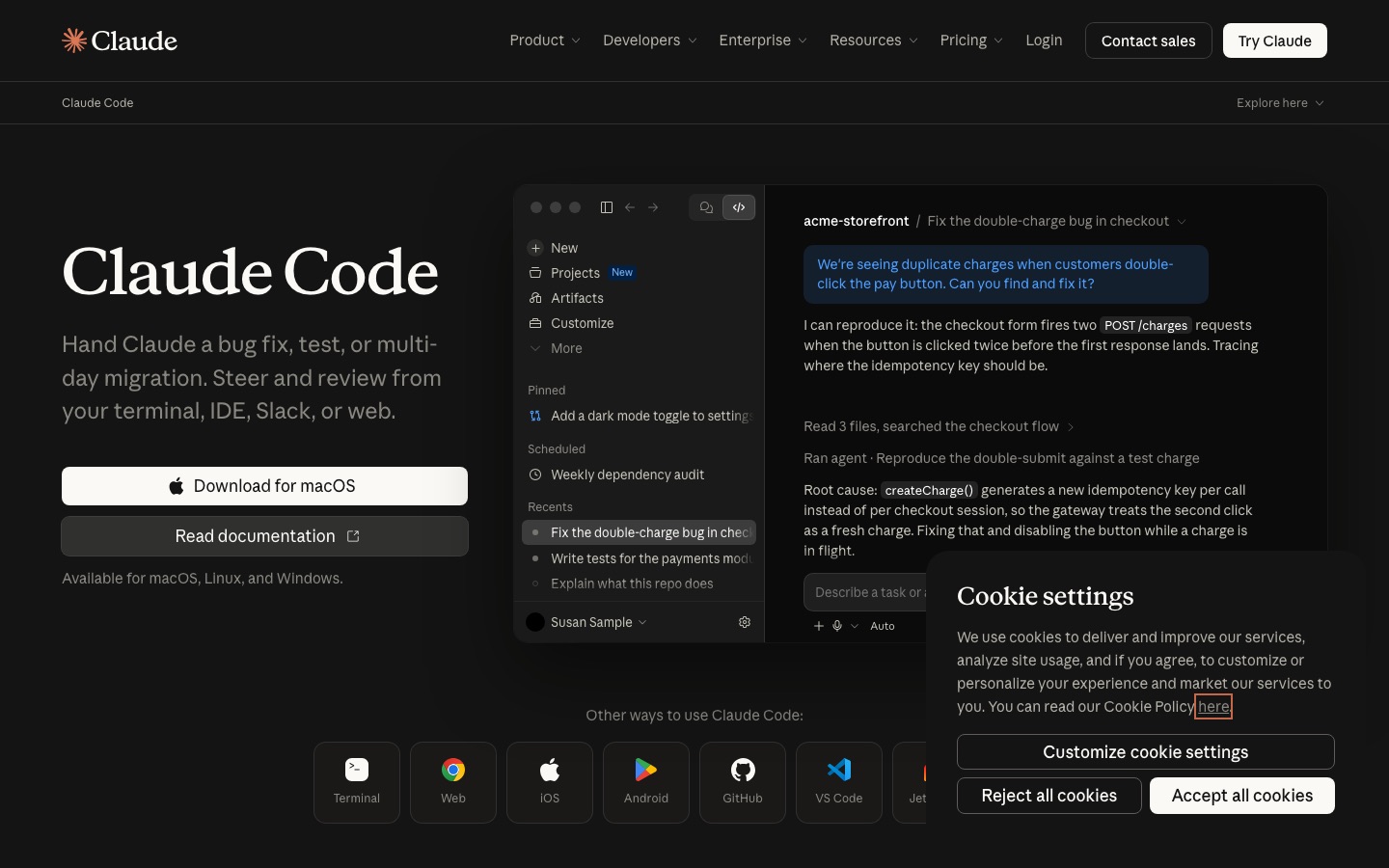
Claude Code in 60 seconds
What it costs: included with Claude Pro ($20/mo), Max, Team and Enterprise. The free claude.ai plan does not include it.
Where it runs: terminal, VS Code (and forks like Cursor), JetBrains, the Claude desktop app, the web at claude.ai/code, mobile and Slack.
First three commands to learn:
/initto create CLAUDE.md,/clearto start fresh between tasks,/usageto check your limits.Most important shortcut: Shift+Tab cycles permission modes, including plan mode.
Undo button: press Escape to stop Claude, and Escape twice or
/rewindto roll code and conversation back to a checkpoint.Best habit: commit your work before a big task, so you can always get back.
What you need before you start
| Requirement | Details |
|---|---|
| Operating system | macOS 13+, Windows 10 1809+, Ubuntu 20.04+, Debian 10+ or Alpine 3.19+, with 4 GB+ RAM |
| Account | Claude Pro, Max, Team or Enterprise, a Claude Console account, or a supported cloud provider |
| Shell | Bash, Zsh, PowerShell or CMD. On Windows, Git for Windows is recommended so Claude can use Bash |
| A project | Any folder of code, ideally a git repository |
Never used a terminal? You can skip it entirely with the desktop app or the VS Code extension, covered in step 10.
Step 1: Install Claude Code
Anthropic recommends the native installer, which updates itself in the background. Open a terminal and run the command for your system, as listed in the setup docs:
| System | Install command | Auto-updates? |
|---|---|---|
| macOS, Linux, WSL | curl -fsSL https://claude.ai/install.sh | bash | Yes |
| Windows PowerShell | irm https://claude.ai/install.ps1 | iex | Yes |
| Windows CMD | curl -fsSL https://claude.ai/install.cmd -o install.cmd && install.cmd && del install.cmd | Yes |
| Homebrew | brew install --cask claude-code | No, run brew upgrade claude-code |
| WinGet | winget install Anthropic.ClaudeCode | No, run winget upgrade Anthropic.ClaudeCode |
| npm | npm install -g @anthropic-ai/claude-code (Node.js 22+, never with sudo) | Yes, if npm's folder is writable |
Run the install command. It shows no progress bar while it downloads, so give it a minute.
Open a new terminal window so your PATH picks up the new command.
Run
claude --version. You should see a version number followed by "(Claude Code)".
Signed apt, dnf and apk repositories exist for Linux, and claude doctor runs a health check of your install.
Step 2: Sign in
In a terminal, go to your project:
cd path/to/your-project.Type
claudeand press Enter.Follow the prompt to log in through your browser with your Claude account.
Your credentials are saved, so you only do this once. To switch accounts later, type
/logininside a session.
If you use the API instead of a subscription, set the ANTHROPIC_API_KEY environment variable and approve it when Claude Code asks.
Step 3: Run your first session
Claude Code reads files as it needs them, so you never have to paste code in. Start by asking questions before you ask for changes:
"what does this project do?"
"explain the folder structure and where the main entry point is"
Then try a small change, such as "add input validation to the signup form and show an error under each field". Claude finds the files, shows the edit and asks for approval. Git works conversationally too: "commit my changes with a descriptive message".
Write prompts like tickets. "Fix the bug" sends Claude searching. "Fix the login bug where users see a blank screen after entering a wrong password; reproduce it with a test first" gets a targeted fix and a test that proves it.
Step 4: Give Claude your project rules with CLAUDE.md
CLAUDE.md is a markdown file Claude reads at the start of every session, so it is where your build commands, coding standards and "never do this" rules belong.
Inside a session, run
/init. Claude analyzes the repo and drafts a CLAUDE.md for you.Edit it down to what matters: how to install, build, test and lint; key folders; naming conventions; anything Claude keeps getting wrong.
Commit it to git so your whole team shares it.
Use
/memorylater to edit memory files or turn auto memory on or off.
| File | Location | Use it for |
|---|---|---|
| Project | ./CLAUDE.md or ./.claude/CLAUDE.md | Team-shared rules, committed to git |
| Personal, this project | ./CLAUDE.local.md (add to .gitignore) | Your sandbox URLs, test data, preferences |
| Personal, all projects | ~/.claude/CLAUDE.md | Your style preferences everywhere |
| Topic rules | .claude/rules/*.md | Modular rules, optionally scoped to file paths |
Keep each CLAUDE.md under about 200 lines, the docs' own target, because longer files use more context and are followed less consistently. You can pull in other files with @path/to/file imports. If your repo already has an AGENTS.md for other coding agents, Claude Code can read that instead. Claude also keeps its own auto memory of corrections and preferences you give it.
Step 5: Use plan mode and permission modes
Permission modes decide what Claude can do without asking. Press Shift+Tab to cycle through them; the current mode shows in the status bar. The permission modes docs list six:
| Mode | What runs without asking | Use it when |
|---|---|---|
| Manual (default) | Reads only | You want to approve every action |
| acceptEdits | Reads, file edits and common file commands in your project | You are iterating and reviewing diffs |
| plan | Reads and research, no edits | Exploring or planning before a big change |
| auto | Most actions, with a safety classifier reviewing each one | Long tasks where prompts slow you down |
| dontAsk | Only pre-approved tools; everything else is denied | Locked-down scripts and CI |
| bypassPermissions | Everything | Isolated containers and VMs only |
Plan mode is the habit that pays off most. Before any multi-file change, switch to plan mode (or start your prompt with /plan), let Claude research and propose an approach, edit the plan, then approve it. A wrong direction caught at the plan stage costs a few messages, not 30 file edits.
Deny rules always win, in every mode. To pre-approve or block specific commands permanently, use /permissions. Recent versions start interactive sessions in auto mode on supported models, so check the status bar the first time you run it.
Step 6: Learn the essential commands
| Command | What it does |
|---|---|
claude, claude "task" | Start a session, optionally with a first prompt |
claude -c / claude -r | Continue the last conversation / pick one to resume |
/init | Create a CLAUDE.md for the project |
/clear | Start a new conversation with empty context |
/compact | Summarize the conversation to free up context, with optional focus instructions |
/context | Show what is filling the context window |
/usage | Show plan limits, session cost and what is using them (/cost is an alias) |
/plan | Enter plan mode, optionally with a task |
/rewind | Roll back code and conversation to a checkpoint |
/code-review, /security-review | Review your current changes for bugs or vulnerabilities |
/mcp, /hooks, /permissions | Manage MCP servers, view hooks, edit permission rules |
Type / at any time to see every command and skill available to you.
Step 7: Delegate with subagents
Subagents are specialized helpers that run in their own context window and return only a summary, so verbose work like searching a codebase or reading logs does not clutter your main session. Claude Code ships with built-in ones, including Explore (fast, read-only search), Plan (research for plan mode) and general-purpose.
To create your own, ask Claude to write one, or add a markdown file to .claude/agents/ (this project) or ~/.claude/agents/ (all projects). Only name and description are required in the frontmatter, and a tools: Read, Glob, Grep line makes a reviewer that can read but never edit.
Setting model: haiku on simple subagents is one of the easiest ways to save usage.
Step 8: Automate guardrails with hooks
Instructions in CLAUDE.md are guidance; hooks are guarantees. A hook is a shell command that runs at a fixed point, such as PreToolUse (before a tool runs, and able to block it), PostToolUse (after it succeeds), Notification, SessionStart or Stop. Hooks live in your settings files, such as .claude/settings.json.
The docs' classic example formats every file Claude edits with Prettier: a PostToolUse hook with the matcher Edit|Write and the command jq -r '.tool_input.file_path' | xargs npx prettier --write. A PreToolUse hook that exits with code 2 blocks the action and sends your stderr message back to Claude, which is how teams stop edits to protected files or risky commands. Run /hooks to confirm what is configured.
Step 9: Connect tools with MCP servers
The Model Context Protocol lets Claude Code use outside tools such as issue trackers, error monitoring and databases:
Run
claude mcp add --transport http sentry https://mcp.sentry.dev/mcp(Notion works the same way withhttps://mcp.notion.com/mcp).Start
claudeand run/mcp, select the server, and complete the browser login.To share a server with your team, add
--scope project, which writes it to a.mcp.jsonfile you can commit.
Only add servers you trust, and prefer a CLI such as gh when one exists, since the docs note CLIs are more context-efficient.
Step 10: Use Claude Code in VS Code, JetBrains, desktop or the web
VS Code: search "Claude Code" in Extensions (VS Code 1.94 or later), then click the Spark icon. You get inline diffs you can accept or reject, @-mentions of files and line ranges, and plans you can comment on. The same extension installs in Cursor and other VS Code forks.
JetBrains: install the Claude Code plugin from the JetBrains Marketplace for IntelliJ, PyCharm, WebStorm and others. It needs the CLI installed.
Desktop app: download Claude for macOS, Windows or Linux (beta), sign in and open the Code tab. It bundles Claude Code, shows diffs visually and runs sessions side by side.
Web and mobile: go to claude.ai/code to run tasks in the cloud against your GitHub repos, in parallel, with no local setup.
Your CLAUDE.md, settings and MCP servers work on every surface.
Step 11: Run Claude Code headless and in CI
Add -p to run a single prompt and exit, which turns Claude Code into a scriptable command-line tool:
claude -p "explain what the auth module does"prints an answer and exits.cat build-error.txt | claude -p "explain the root cause" > output.txtpipes data in and out.claude -p "run the tests and fix failures" --allowedTools "Bash,Read,Edit"pre-approves tools.--bareskips local hooks, plugins and CLAUDE.md for reproducible CI runs, and uses an API key rather than your subscription login.
For GitHub, run /install-github-app to set up the Claude GitHub App and Actions workflows, so teammates can mention @claude on issues and pull requests.
Tips to save usage and keep context clean
Context size drives both cost and quality. These habits come from Anthropic's cost guidance, which puts the average enterprise cost at around $13 per developer per active day:
`/clear` between unrelated tasks. Stale context costs tokens on every message.
`/compact` with focus instructions when a long task needs continuity, for example
/compact keep the API design decisions and failing tests.Match the model and effort to the job. Opus 5.5 is the default on paid plans; Sonnet handles most coding for less,
opusplanplans with Opus and executes with Sonnet, and a lower/effortsuits simple edits.Keep CLAUDE.md lean and move rarely used instructions into skills, which load only when needed.
Disable unused MCP servers with
/mcp, and check/contextwhen things feel slow.Stop early. Press Escape the moment Claude heads the wrong way, instead of letting it finish.
Common mistakes to avoid
Skipping git. Commit before big tasks. Checkpoints help, but git is your real safety net.
One endless session. Quality drops as context fills; start fresh per task.
A 1,000-line CLAUDE.md. Long instruction files are followed less reliably, not more.
Using bypassPermissions on your laptop. Keep it for throwaway containers; use auto or acceptEdits instead.
Not verifying. Ask Claude to run the tests, the linter or the app, so it checks its own work.
Troubleshooting
"claude: command not found": open a new terminal window. If it persists, the install folder is not on your PATH.
"The token '&&' is not a valid statement separator": you are in PowerShell, so use the PowerShell command. "'irm' is not recognized": you are in CMD.
Something seems misconfigured: run
claude doctorfrom your shell or/doctorin a session."You've hit your session limit": wait for the five-hour window to reset (the message shows when), or turn on usage credits with
/usage-credits.
How much Claude Code costs
Claude Code is included in every paid Claude plan, per Claude's pricing page as of October 2026:
| Plan | Price | Claude Code usage |
|---|---|---|
| Pro | $20/mo, or $17/mo billed annually | Included; good for a few focused sessions a day |
| Max 5x | $100/mo | 5x Pro's per-session usage |
| Max 20x | $200/mo | 20x Pro's per-session usage |
| Team | $25 Standard or $125 Premium per seat per month | Included on every seat |
| Console (API) | Pay per token | No plan limits; billed by usage |
Limits reset on a rolling five-hour window, plus weekly limits on Max. Start on Pro and upgrade only if you keep hitting the cap.
FAQ
Is Claude Code free to use?
No. Claude Code needs a paid Claude plan (Pro, Max, Team or Enterprise), a Claude Console account billed per token, or access through Amazon Bedrock, Google Cloud or Microsoft Foundry. The free claude.ai plan does not include it. The cheapest option is Claude Pro at $20 a month, or $17 a month billed annually.
Do I need to know how to use the terminal?
No. The Claude desktop app has a Code tab that runs Claude Code without a terminal, and the VS Code extension works inside your editor. The terminal version is the most complete, though, and Claude Code can explain any command it runs, which makes it a gentle way to learn the command line.
How do I use Claude Code in VS Code?
Open the Extensions view, search for "Claude Code" and install Anthropic's extension (it needs VS Code 1.94 or later). Click the Spark icon, sign in with your Claude account, and chat in the panel. Claude shows proposed edits as inline diffs you can accept or reject. The same extension works in Cursor.
What is CLAUDE.md?
CLAUDE.md is a markdown file in your project that Claude Code reads at the start of every session. Put your build and test commands, coding standards and project conventions there. Run /init to generate a first draft, keep it under about 200 lines, and commit it so your whole team gets the same behavior.
How do I turn on plan mode in Claude Code?
Press Shift+Tab until the status bar shows plan mode, start a prompt with /plan, or launch with claude --permission-mode plan. In plan mode, Claude reads and researches but does not edit files. It proposes a plan you can change, and it only starts making edits after you approve.
How do I update Claude Code?
The native installer updates automatically in the background. To update right away, run claude update. Homebrew and WinGet installs do not auto-update by default, so run brew upgrade claude-code or winget upgrade Anthropic.ClaudeCode. For npm, run npm install -g @anthropic-ai/claude-code@latest.
Bottom line
Learning how to use Claude Code well comes down to a few habits: run it in the project folder, set up a short CLAUDE.md with /init, plan before big changes, clear context between tasks, and let hooks and permissions enforce what matters. Start with small, specific tasks on Claude Pro, then add subagents, MCP servers and CI once the basics feel natural. To see how it stacks up, read our Claude Code vs Cursor comparison, the wider best AI coding tools roundup, our Claude vs ChatGPT guide to the assistants themselves, or the Graphite vs CodeRabbit review of AI code review tools.
Explore more AI coding assistants, agents and developer tools in the AI coding category. Built a tool we should list? Submit it for a listing.