How to Use Runway (2026): Step-by-Step Guide for Beginners
A practical Runway tutorial for 2026: pick a plan, make a first frame, turn it into video with Gen-4.5, write motion prompts that work, edit real footage with Aleph 2.0, add sound, use Runway Agent and Workflows, and stretch your credits further.
Quick answer: how to use Runway. Sign up at runway.com, open the video generator, upload or create a still image as your first frame, choose Gen-4.5, write a short prompt that describes the motion and camera move (not the scene), pick 5 or 10 seconds and an aspect ratio, and click Generate. Review the result, tweak one thing at a time, then upscale and download. To change footage you already shot, use Aleph 2.0 in Edit Studio instead.
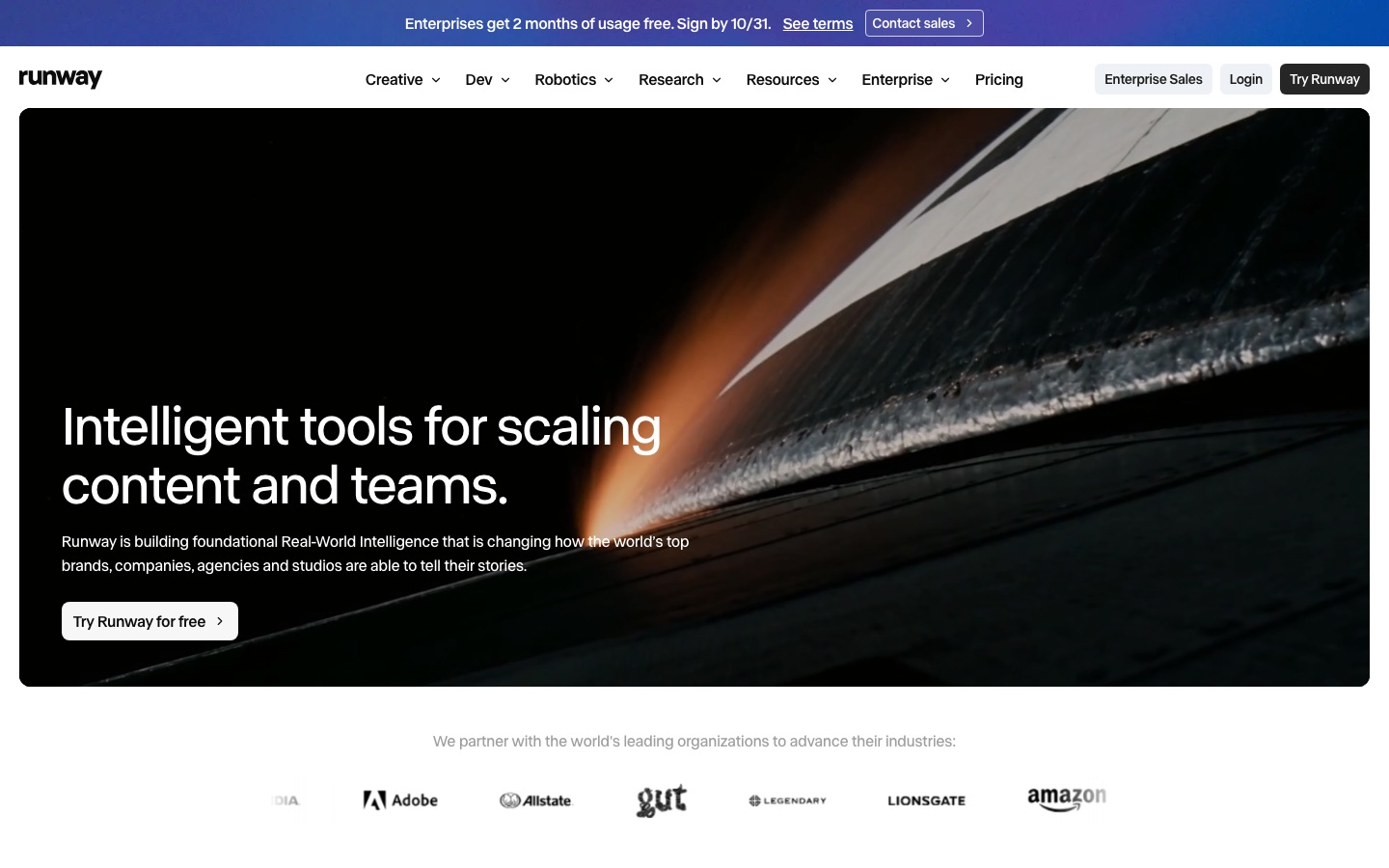
Runway is a browser-based AI video platform built for filmmakers, editors and marketers. In 2026 it grew from a single generator into a full production workspace: its own Gen-4.5 and Aleph 2.0 models, third-party models such as Kling 4.0 and Seedance 2.5, an AI agent, node-based workflows and plugins for Premiere Pro, After Effects and DaVinci Resolve. This guide follows Runway's official pricing page, changelog and help center as of late October 2026. We did not run paid hands-on tests, and Runway updates its interface often, so a button may sit somewhere slightly different on your screen.

Runway in 60 seconds
Free to try: 125 one-time credits, enough for about 10 seconds of Gen-4.5 video. Paid plans start at $15 a month ($12 billed annually).
Best starting model: Gen-4.5 for new shots, Gen-4 Turbo for cheap drafts, Aleph 2.0 for editing existing footage.
Best habit: start from an image, not just text. A first frame locks the subject, framing and lighting, so your prompt only has to direct motion.
Sound: Gen-4.5 clips are silent. Add audio with Runway's music, voice and sound effects tools, or pick a third-party model that generates sound.
Credits: Gen-4.5 costs 12 credits per second, so the Standard plan's 625 credits buy roughly 52 seconds a month.
Undo is cheap, rerolls are not: test with 5-second clips and only render 10 seconds once the motion is right.
What you need before you start
| Requirement | Details |
|---|---|
| Device | Any modern desktop browser. Edit Studio and Aleph 2.0 run in the desktop web app; Runway also has mobile apps for quick generation |
| Account | Free account to test; a paid plan for watermark-free exports, all models and Edit Studio |
| Source material | A still image (photo, render or AI image) for image-to-video, or a clip of up to 30 seconds for Aleph 2.0 edits |
Step 1: Create an account and choose a plan
Go to runway.com and sign up with Google, Apple or email.
You land on the home dashboard with your 125 free credits. They are one-time credits that do not expire, so you can learn at your own pace.
When you are ready for real projects, open Plans and pick Standard, Pro or Max. Annual billing saves 20%.
Here is what each plan includes, per Runway's pricing page as of October 2026:
| Plan | Price | Monthly credits | Key extras |
|---|---|---|---|
| Free | $0 | 125 one-time | Limited model selection, 5GB storage |
| Standard | $15/mo ($12 annual) | 625 | All video and image models, Agent, App Studio, music, voice and SFX, 4K upscaling, no watermark |
| Pro | $35/mo ($28 annual) | 2,250 | 15 parallel generations, Brand Kit, custom voice clone, credit top-ups, Runway MCP, unlimited 4K upscaling |
| Max | $95/mo ($76 annual) | 9,500 | Early access to new models, HDR, ProRes and image-sequence output, 1 month of credit rollover |
Standard and Pro credits reset each billing cycle and do not roll over. Extra credits you buy never expire. A self-serve Team plan launched in September 2026 pools credits from every seat into a shared balance.
Step 2: Learn the Runway interface
Runway has grown a lot of tabs. You only need a few to start:
Generate (Video and Image): the core text-to-video, image-to-video and text-to-image tools, with a model picker at the top.
Edit Studio: where Aleph 2.0 edits footage you upload.
Agent: a chat-based collaborator that plans shots, picks models and assembles sequences for you.
Workflows: a node editor for chaining steps, such as image to video to upscale, into a reusable pipeline.
Assets and Projects: where every generation is saved, organized by project.
Audio tools: music, voice and sound effects generation for adding sound to silent clips.
Step 3: Make a strong first frame
Image-to-video gives far more predictable results than text alone, because the image fixes the subject, composition, palette and lighting. You can upload a photo or make one inside Runway:
Open Generate > Image and choose a model. Gen-4 Image costs 8 credits at 1080p, Gen-4 Image Turbo costs 2, and Nano Banana Pro is also available at 20 credits for 2K.
Set the aspect ratio to match your final video (16:9 for YouTube, 9:16 for Reels and TikTok). A mismatched ratio leads to cropping or black bars later.
Write a descriptive prompt: subject, setting, lighting, lens and style.
Generate a few variations with the cheap Turbo model, then re-render your favorite at full quality.
Example image prompt: A lighthouse keeper in a yellow raincoat standing on wet rocks at dusk, storm clouds, warm lantern light, 35mm film still, shallow depth of field. If you prefer other image models, our guide on how to use Midjourney covers making cinematic stills you can bring into Runway.
Step 4: Turn the image into video with Gen-4.5
Open Generate > Video and select Gen-4.5 in the model picker.
Drag your image into the frame slot. It becomes the first frame of the clip.
Pick the aspect ratio (it should match the image) and a duration. Start with 5 seconds; Gen-4.5 makes clips of roughly 2 to 10 seconds.
Type a motion prompt (see Step 6 for the formula).
Click Generate. Results appear in your session and in Assets.
Watch it twice: once for the overall motion, once for hands, faces and edges, where artifacts usually show up.
Need a quick, cheap draft first? Switch to Gen-4 Turbo, which costs roughly half as many credits per second, and only move to Gen-4.5 once you know the motion works.
Step 5: Try text-to-video
Leave the image slot empty and Gen-4.5 generates from your prompt alone. This is useful for abstract shots, establishing shots and B-roll where exact framing does not matter. Because the model has to invent the whole scene, describe it more fully than you would for image-to-video: subject, environment, lighting, camera position and movement, and style.
Example: Aerial drone shot slowly descending over a foggy pine forest at sunrise, golden light breaking through the mist, cinematic, smooth motion.
Step 6: Write motion prompts that actually work
The most common beginner mistake is re-describing the image in the prompt. In image-to-video, the picture already shows what is there. Your prompt should only say what changes over the next few seconds. A reliable formula:
[Camera move] + [subject action] + [environment motion] + [pace or mood]
| Weak prompt | Better prompt |
|---|---|
A lighthouse keeper on rocks in the rain | Slow push-in. The keeper raises his lantern and turns toward the sea. Rain streaks sideways, waves crash below. Tense, steady pace. |
A coffee cup on a table | Static camera. Steam curls up from the cup as a hand slides it toward the lens. Morning light flickers through blinds. |
Woman in a city | Handheld tracking shot following her from behind as she walks into a crowded night market, neon signs reflecting on wet pavement. |
Use real camera terms: dolly in, truck left, crane up, orbit, handheld, locked-off, rack focus. Explicit terms get explicit moves; vague wording gets the model's guess.
One main action per clip. "Turns and smiles" works. "Turns, smiles, picks up a phone, walks to the door" usually breaks.
Describe physics: wind direction, water movement, fabric, hair. It makes motion feel grounded.
Skip negative prompts. Saying "no blur" can introduce the thing you named. Describe what you want instead.
Change one variable per reroll so you learn what each word does.
Step 7: Edit real footage with Aleph 2.0 in Edit Studio
Aleph 2.0, launched in May 2026 alongside Edit Studio, is Runway's video-to-video model. Instead of making a new shot, it changes one you already have, which is often more useful for real productions. According to Runway's Aleph 2.0 announcement, it handles clips up to 30 seconds at 1080p and is available on all paid plans in the desktop web app.
Open Edit Studio and upload your clip.
Describe the change in plain language, for example
replace the red sneakers with white leather bootsorchange the time of day to golden hour.Preview the change as a still image first. Refine it until the frame looks right; this step is cheap and saves wasted video generations.
Generate the final video. Aleph carries the edit through the whole shot, and in multi-cut videos it can apply the change across the relevant shots.
Good uses: swapping products or colorways, changing backgrounds or seasons, relighting, removing logos or passersby, and restyling an entire clip. Aleph 2.0 costs about 28 credits per second, more than double Gen-4.5, so trim your clip to the part that needs changing before you upload it.
Step 8: Add sound to your clips
Gen-4.5 and Aleph 2.0 output silent video. You have three ways to add audio inside Runway:
Runway's audio tools (Standard and up) generate music, voiceovers and sound effects. ElevenLabs' newest V4 model was added in September 2026.
Third-party models with native audio: switch the model picker to Kling 4.0, Seedance 2.5 or Wan 3.0, which generate picture and sound together.
Your editor: export the silent clip and add sound in CapCut, Premiere or Resolve. For voiceovers, ElevenLabs on its own gives the most control (see our guide to using ElevenLabs).
If your shot needs a person speaking on camera with lip sync, a model with native audio, such as Kling, will save you a lot of work. Our Runway vs Kling vs Luma comparison covers when each one makes sense.
Step 9: Use Runway Agent for multi-shot sequences
Runway Agent is a chat-based collaborator. Describe the piece you want ("a 30-second product teaser for a trail running shoe, three shots, moody mountain light, 9:16") and it plans the shots, chooses models for each one, generates them and assembles a sequence. Agent can also create and edit Brand Kits in the conversation, and since October 2026 it offers a Seedance 2.5 Draft Mode that renders cheaper 480p drafts you can enhance afterward.
Open Agent and describe the goal, audience, length and format.
Upload references: product shots, a logo, a mood board.
Review the shot plan before anything renders, and edit it in chat.
Approve, let it generate, then ask for changes shot by shot.
Agent is the fastest route from idea to rough cut. You trade some control for speed, so keep important hero shots in the manual generator.
Step 10: Build reusable Workflows
Workflows are node graphs: an image node feeds a video node, which feeds an upscaler, and so on. Build one when you repeat the same process, such as turning every product photo into a 5-second vertical clip with the same camera move. Agent can build, edit and run workflows from chat, and compositing nodes added in August 2026 let you layer images and video. Running an agent-built workflow requires a Standard plan or higher, per Runway's help center.
Step 11: Upscale, export and finish in your editor
Open the clip in Assets and choose Upscale for 4K. Pro and Max include unlimited 4K video upscaling.
Download as MP4 for social or web. Higher tiers add ProRes 4444 and PNG sequence export for color and VFX work, and Max adds HDR output.
Bring clips into your editor. Runway's panel runs inside Premiere Pro and After Effects (all plans) and DaVinci Resolve (paid plans), so you can generate without leaving your timeline.
How far your Runway credits go
Credit costs per second, from Runway's pricing page as of October 2026. Approximate seconds assume you spend the whole monthly allowance on that model.
| Model | Credits per second | Standard (625) | Pro (2,250) | Max (9,500) |
|---|---|---|---|---|
| Gen-4.5 | 12 | ~52 sec | ~187 sec | ~791 sec |
| Gen-4 Turbo | About 5 to 6 | ~104 sec | ~375 sec | ~1,900 sec |
| Aleph 2.0 | 28 | ~22 sec | ~80 sec | ~339 sec |
| Kling 4.0 (1080p) | About 23.6 (118 per 5 sec) | ~26 sec | ~95 sec | ~400 sec |
Kling 4.0 has a 25% launch discount inside Runway until November 30, 2026. You rarely keep the first take, so plan on two to four generations per usable shot. To stretch credits, find the motion with Gen-4 Turbo or Agent's Draft Mode, render 5 seconds before 10, fix problems in the still image rather than rerolling the video, and trim clips before sending them to Aleph. Standard suits learning and occasional social clips; weekly client work usually needs Pro or Max.
Common mistakes to avoid
Describing the image instead of the motion. The result is a near-static clip.
Cramming a whole story into one generation. Plan separate shots and cut them together.
Mismatched aspect ratios between the first frame and the video setting.
Expecting readable text. On-screen text and logos still warp in motion; add them in your editor.
Using free plan clips commercially. Free exports are for testing. Paid plans remove the watermark, and Runway's help center says what you create on paid plans is yours to use.
Troubleshooting
The clip barely moves: add an explicit camera move and a clear subject action, and remove scene description.
Faces or hands morph: use a cleaner, higher-resolution first frame with the face clearly visible, shorten the clip, and reduce the amount of motion.
The model ignores your camera move: put the camera instruction first and use a standard term like
slow dolly in.A model is missing from the picker: the free plan only includes a limited selection. Some third-party models need a paid plan.
FAQ
Is Runway free to use?
Runway has a free plan with 125 one-time credits and a limited selection of models, which is enough for about 10 seconds of Gen-4.5 video or a few dozen cheap image generations. The credits do not expire. For regular use, watermark-free exports and all models, paid plans start at $15 a month, or $12 a month billed annually.
How long can Runway videos be?
Gen-4.5 generates clips of roughly 2 to 10 seconds per generation. Aleph 2.0 can edit uploaded clips of up to 30 seconds at 1080p, and some third-party models in Runway, such as Seedance 2.5, generate up to 30 seconds. Longer videos are built by generating several shots and cutting them together, which Runway Agent can do for you.
Does Runway Gen-4.5 generate sound?
No. Gen-4.5 makes silent clips. You can add audio with Runway's built-in music, voice and sound effects tools on paid plans, choose a third-party model with native audio such as Kling 4.0, Seedance 2.5 or Wan 3.0 inside Runway, or add sound later in your video editor.
How many credits does a Runway video cost?
Gen-4.5 costs 12 credits per second, so a 5-second clip is 60 credits and a 10-second clip is 120. Gen-4 Turbo costs roughly half that, Aleph 2.0 edits cost about 28 credits per second, and Kling 4.0 inside Runway costs about 118 credits per 5 seconds at 1080p before its launch discount.
Can I use Runway videos commercially?
On paid plans, yes. Runway's help center says content you create is yours to use without non-commercial restrictions from Runway, and paid exports carry no watermark. Treat free plan output as test material. You are still responsible for what you upload, so only use images and footage you have rights to.
What is the difference between Gen-4.5 and Aleph 2.0?
Gen-4.5 creates new video from text or a first-frame image. Aleph 2.0 edits video you already have: you describe a change, such as a new background, product or time of day, preview it as an image, and Aleph applies it across the whole clip. Use Gen-4.5 for new shots and Aleph for fixing or restyling existing footage.
Bottom line
Learning how to use Runway well comes down to a few habits: start from a strong first frame, prompt for motion rather than scenery, draft with cheap models and 5-second clips, and use Aleph 2.0 when you need to change real footage instead of inventing new shots. Standard is enough to learn on; Pro is where most working creators land. For the bigger picture, read our Runway review, the step-by-step guide on how to make AI videos from script to final edit, our roundup of the best AI video generators, and the best AI video editors for finishing your cut.
Explore more AI video generators, editors and avatar tools in the AI video category. Built a tool we should list? Submit it for a listing.