How to Use Claude (2026): A Complete Beginner's Guide
A step-by-step tutorial for Claude, Anthropic's AI assistant: sign up, write prompts Claude follows well, pick between Haiku, Sonnet and Opus, upload long documents, build Docs, Slides and Artifacts, set up Projects, memory and connectors, and let Claude work on your files and scheduled tasks.
Quick answer: how to use Claude. Go to claude.ai or download the Claude app, sign up free with an email or Google account, and type your request in the message box. Claude works best with full context, so paste the actual document, explain who the result is for and say what format you want. Use Projects to keep files and instructions for recurring work, and upgrade to Pro ($20/mo) when you need Opus, Research, Claude Code or more usage.
Claude is the AI assistant from Anthropic, known for careful reasoning, natural writing and handling long documents. In 2026 it also became much more than a chat window: it creates editable docs, slide decks and designs, connects to your apps, works directly on files on your computer and runs scheduled tasks. This tutorial is based on Anthropic's official help center, pricing page and documentation as of October 2026, plus public user feedback. Features roll out by plan, so if you do not see something, check your plan first.

Claude in 60 seconds
Cost: free plan available. Pro is $20/mo ($17/mo billed annually), Max starts at $100/mo.
Current models: Claude Haiku 5.5 (fastest), Sonnet 5.5 (everyday balance), Opus 5.5 (most capable for most work) and Fable 5.1 (demanding reasoning, on Max).
Where it runs: web, Mac and Windows desktop apps, iOS and Android, plus Chrome, Microsoft 365 and Slack integrations.
Standout features: long-document analysis, Projects, Artifacts, Docs, Slides and Design, connectors, file work and scheduled tasks.
Limits: usage resets in five-hour sessions, so heavy users plan their work around that.
Best habit: paste real material and explain why you want something, not just what.
Which Claude plan do you need?
Here is what each plan includes, per Claude's pricing page as of October 2026:
| Plan | Price | What you get |
|---|---|---|
| Free | $0 | Chat on web, desktop and mobile, web search, file creation, code execution, memory, connectors, Artifacts, Docs, Slides and Design, up to 5 Projects. No Opus, Research or Claude Code |
| Pro | $20/mo or $17/mo annual | More usage, Opus, Sonnet and Haiku, Research, unlimited Projects, Claude Code, Claude in Chrome, Microsoft 365, scheduled tasks, Dashboards (beta) |
| Max 5x / 20x | $100 / $200 per month | 5x or 20x Pro usage, higher output limits, priority access, early features, Fable access |
| Team | $25/seat monthly ($20 annual), Premium $125 ($100 annual) | Shared Projects, admin tools, SSO, Claude Motion (beta), 2 to 150 users |
| Enterprise | Seat price plus usage | SCIM, audit logs, data retention controls, HIPAA-ready option |
Start free, then upgrade if you hit limits or need Opus. Not sure Claude is the right assistant? Our Claude review and Claude vs ChatGPT comparison help you decide.
Step 1: Sign up and install the apps
Go to claude.ai and click Sign up. Use an email address (you get a login link) or continue with Google.
Verify your phone number if asked. You must be 18 or older and in a supported country.
Optional: install the desktop app for Mac or Windows. It is required for working with folders and apps on your computer (step 10).
Optional: install the mobile app for iOS or Android for voice and photos on the go.
Step 2: Learn the Claude interface
Sidebar: new chat, your recent chats, Projects and Artifacts.
Message box: type here. The + button adds files, photos, screenshots and connectors. Typing / shows commands and skills.
Model selector: pick Haiku, Sonnet or Opus, and set the effort level and extended thinking for harder tasks.
Side panel: Artifacts, docs, decks and designs open beside the chat so you can edit them while you talk.
To fix a response, edit your previous message and resend it, or click retry. Editing creates a new branch, so you can return to the old version.
Step 3: Write prompts Claude follows well
Anthropic's prompting best practices boil down to a few rules that make a real difference in the chat app too:
Be explicit. Current Claude models follow instructions precisely. If you want a thorough answer, ask for one.
Explain why. "Keep it under 100 words because it goes in a push notification" works better than "be short".
Paste the real material. Contracts, transcripts, data and drafts beat descriptions of them.
Separate parts clearly. Wrap long material in tags like
<contract>and</contract>, so instructions and source text never blur.Show an example of the output you like and ask Claude to match it.
Ask it to ask. End complex requests with
Ask me any questions before you start.
| Weak prompt | Better prompt |
|---|---|
summarize this | Summarize this 30-page lease for a first-time renter: rent, deposit, notice periods, penalties, and anything unusual. Use bullets and quote the clause for each. |
make this better | Edit this cover letter for a nonprofit program manager role. Keep my voice, cut it to 250 words, and explain your three biggest changes. |
write a blog post about sleep | Draft a 900-word blog post for new parents on safe infant sleep. Warm, practical tone, H2 subheadings, and mark any claim I should check with a pediatric source. |
Most general prompt templates work in Claude unchanged; our best ChatGPT prompts library has 55 you can paste in.
Step 4: Pick the right model and effort
Anthropic's models overview recommends Opus 5.5 as the starting point for most serious work. In the app, the choice comes down to speed versus depth:
| Model | Best for | Plans |
|---|---|---|
| Haiku 5.5 | Quick questions, short rewrites, simple extraction | Paid plans (Free has a smaller selection) |
| Sonnet 5.5 | Everyday writing, analysis and coding at good speed | All plans, including Free |
| Opus 5.5 | Long documents, complex analysis, agentic tasks, hard coding | Pro and up |
| Fable 5.1 | The most demanding reasoning and long-horizon work | Max (with its own weekly limit) |
Higher effort and extended thinking make Claude reason longer before answering, which helps with math, planning and tricky analysis, but uses more of your limit. Use Sonnet at normal effort for most tasks, and switch to Opus or higher effort when an answer needs more care.
Step 5: Upload files and work with long documents
Long documents are Claude's home turf. Click + or drag in PDFs, Word files, spreadsheets, slides, images and code. The current models support a context window of up to 1M tokens, roughly 555,000 words, per Anthropic's docs; how much fits in a chat depends on your plan.
List every deadline, payment and penalty in this contract with the clause number.Compare these two versions of our policy and show what changed in a table.Read these 5 research papers and summarize where they agree and disagree.Is there anything in this document about early termination? If not, say so clearly.
That last prompt matters: Claude is good at saying when something is not in a document, which is exactly what you need for legal, financial and academic work.
Step 6: Create Artifacts, Docs, Slides and designs
Ask Claude to build something, and it appears in a side panel you can edit, download or share:
Docs:
Write a project proposal as a doc with an executive summary, timeline and budget table.You and your team can edit it together.Slides:
Turn this report into a 10-slide deck for our leadership team.Decks export to PowerPoint and PDF with formatting intact.Design:
Design a one-page event flyer in our brand colors.Artifacts: small interactive tools such as a calculator, quiz, flowchart or mini web app:
Build a mortgage calculator with sliders for rate and term.
On October 8, 2026, Anthropic moved Docs, Slides and Design out of beta on every plan, including Free, and launched Claude Dashboards (live data dashboards from sources like BigQuery, Snowflake and Salesforce, beta on paid plans) and Claude Motion (animated explainers via /motion, beta on Team and Enterprise), per its Dashboards and Motion announcement.
Step 7: Organize recurring work with Projects
A Project is a workspace with its own chats, files and instructions. Upload your style guide, product docs or course notes once, and every chat in that Project uses them as background.
Click Projects in the sidebar, then New project, and give it a name and description.
Add files to the project knowledge: documents, text, code or data.
Write project instructions, for example:
You are helping me write grant applications for a small environmental nonprofit. Use plain, persuasive language and US spelling.Start chats inside the Project whenever you work on that topic.
Free users can create up to five Projects. On paid plans, Claude automatically switches to retrieval when project knowledge nears the context limit, which Anthropic says expands capacity by up to 10x. Team and Enterprise users can share Projects with view or edit access.
Step 8: Personalize Claude with instructions, styles and memory
Instructions for Claude: click your initials, then Settings, and fill in the instructions field with your role, preferences and how you like answers formatted. They apply to every chat.
Styles: choose or create a writing style (concise, explanatory, formal, or one built from samples of your writing) from the message box.
Memory: Claude can remember context from past conversations so you do not repeat yourself. You can view, edit or turn it off in settings, and you can import memory from other AI assistants.
Skills: reusable instructions for specific tasks, such as a brand voice or a report format, which you can turn on when needed.
Step 9: Search the web and run Research
Claude searches the web when a question needs current information and cites sources inline. For bigger questions, turn on Research (Pro and up): Claude runs many searches, can also look through connected sources such as your Google Drive or email, and returns a cited report after several minutes. Try: Research how US states regulate short-term rentals in 2026. Group states by approach in a table and cite each row. Always click through a few citations before relying on the report.
Step 10: Connect apps and let Claude work on your files
Connectors link Claude to tools such as Google Drive, Gmail, Calendar, Notion, Slack and GitHub, built on the open Model Context Protocol. Add them from the + menu or Settings, then ask: Find last week's emails from our accountant and list anything I need to send. Pro and up also get Claude in Chrome, a browser extension that reads pages and acts across your tabs, and Claude for Microsoft 365.
Claude also absorbed Cowork, Anthropic's former file agent. Per the Cowork page, "Claude Cowork is now just Claude," rolling out to Pro and Max first. When a task involves files, Claude brings in those abilities automatically:
In the desktop app, choose which folders and tools Claude can access.
Ask for real file work:
Rename the receipts in this folder by date and vendor, then build a spreadsheet of totals by month.Claude reads, edits and creates Word, PDF, Excel, PowerPoint, images and code. Deleting anything needs your approval.
Schedule tasks to run unattended on any cadence, such as a Friday summary of a shared folder.
File work and scheduled tasks use your limits faster than chat, so start with small, well-scoped jobs.
Step 11: Use Claude Code for programming
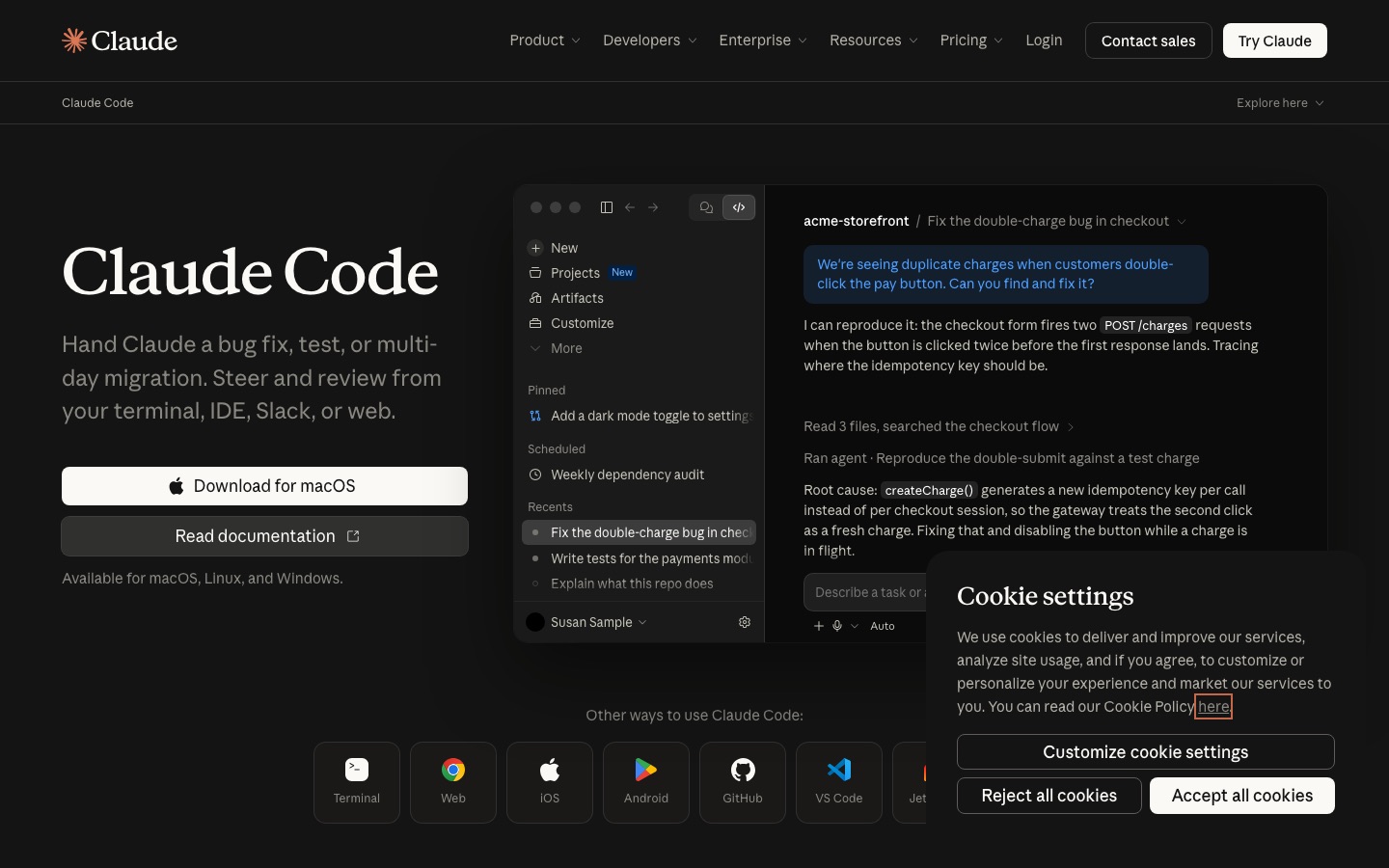
If you write software, Claude Code is included with Pro and above. It reads your codebase, edits files, runs tests and uses git, asking permission based on the mode you choose. Our tutorial on how to use Claude Code covers setup step by step.
How to make your usage limits last
Start new chats for new topics. Long chats re-read everything each turn and drain your limit faster.
Use Projects instead of pasting the same files into every chat.
Match the model to the task. Haiku or Sonnet for quick jobs, Opus for the hard ones.
Batch questions into one message instead of five short ones.
Watch the reset time. Usage resets in five-hour sessions, and paid plans also have weekly limits.
Privacy settings to check
In Settings, Privacy, decide whether your chats can be used to help improve Claude, and turn it off if you prefer. Use an incognito chat for conversations you do not want saved to history or memory. On Team and Enterprise, business data is governed by your organization's agreement. As with any assistant, keep passwords, ID numbers and confidential client data out of personal accounts.
Common mistakes and troubleshooting
"You've reached your usage limit": wait for the reset time shown, switch to a lighter model, or upgrade to Pro or Max.
Opus is missing: it is not on the Free plan. Upgrade or use Sonnet.
A feature is missing: Cowork, Dashboards and other features roll out by plan and region; update the app and check your plan.
Vague answers: add context, audience and format, or raise the effort level.
Claude cannot see your files: in the desktop app, grant folder access; for cloud files, add the right connector.
Trusting citations blindly: Claude can still make mistakes. Verify facts before you publish or act.
FAQ
Is Claude AI free to use?
Yes. The free plan includes chat on web, desktop and mobile, web search, file uploads, memory, connectors, Artifacts, Docs, Slides and Design, and up to five Projects. It does not include Opus, and it has a usage limit that resets every five hours. Opus, Research and Claude Code require Pro at $20 a month.
How do I start using Claude?
Go to claude.ai, sign up with an email or Google account, and type a request. Start with something real, like summarizing a PDF or drafting an email, and paste the actual material. Then give feedback to refine the answer. Install the desktop app later if you want Claude to work with files on your computer.
What is the difference between Claude Opus and Sonnet?
Opus 5.5 is Anthropic's most capable everyday model, best for long documents, complex analysis and hard coding, but slower and heavier on limits. Sonnet 5.5 balances speed and intelligence and handles most writing and analysis well. Haiku 5.5 is the fastest. Opus needs a paid plan.
Is Claude better than ChatGPT?
It depends on the job. Claude is often preferred for long documents, careful writing and coding, and its Docs, Slides and Artifacts are strong. ChatGPT has broader extras, including native image generation and a larger app ecosystem. Both start at $20 a month for paid plans, so test both free tiers on your real tasks.
Can Claude generate images?
Not photos or illustrations in the way ChatGPT or Gemini can. Claude can analyze images you upload and create diagrams, charts, designs, SVG graphics, slide decks and interactive Artifacts. For photorealistic or artistic images, use a dedicated generator alongside it.
How do Claude's usage limits work?
Claude measures usage in sessions that reset every five hours, and paid plans also have weekly limits. Long chats, big files, Opus, higher effort and file tasks use more of your allowance. Pro offers more than Free, and Max multiplies Pro usage by 5x or 20x. The app shows when your limit resets.
Bottom line
Learning how to use Claude well comes down to three habits: give it real material and clear goals, keep recurring work in Projects, and pick the model to fit the job. From there, Docs, Slides, connectors and file tasks turn it into a genuine work assistant. Compare it with its rivals in our Claude vs Gemini comparison, or learn the alternatives with our guides on how to use ChatGPT and how to use Gemini.
Explore more AI assistants and work tools in the AI productivity category and the AI agents category. Built a tool we should list? Submit it for a listing.