How to Use HeyGen (2026): Step-by-Step Beginner Guide
A start-to-finish HeyGen tutorial for 2026: make your first avatar video from a script, create your own Video Avatar (formerly Digital Twin) with Avatar V, use Video Agent for prompt-to-video, translate videos with lip sync, and get the most out of your credits.
Quick answer: how to use HeyGen. Sign up at heygen.com, click Create Video, choose landscape or portrait, pick a stock avatar (or your own), paste your script, choose a voice and language, then click Submit and download the finished video. To star in your own videos, record about two minutes of yourself talking to camera and turn it into a Video Avatar in the Avatars tab. To translate an existing video into another language with your voice and matched lip sync, use the Video Translator.
HeyGen is an AI avatar video platform: you type, and a realistic presenter says it on camera. In 2026 it added the Avatar V model, Video Agent (prompt-to-video with script, voice, captions, music and motion graphics), 30-minute single-pass avatar videos, Edit Look retouching, and a Video Podcast app. This guide follows HeyGen's pricing page, Academy, help center and release notes as of late October 2026. We did not run paid hands-on tests, and HeyGen renames features often (Digital Twin became Video Avatar in September 2026), so labels in your account may differ slightly.

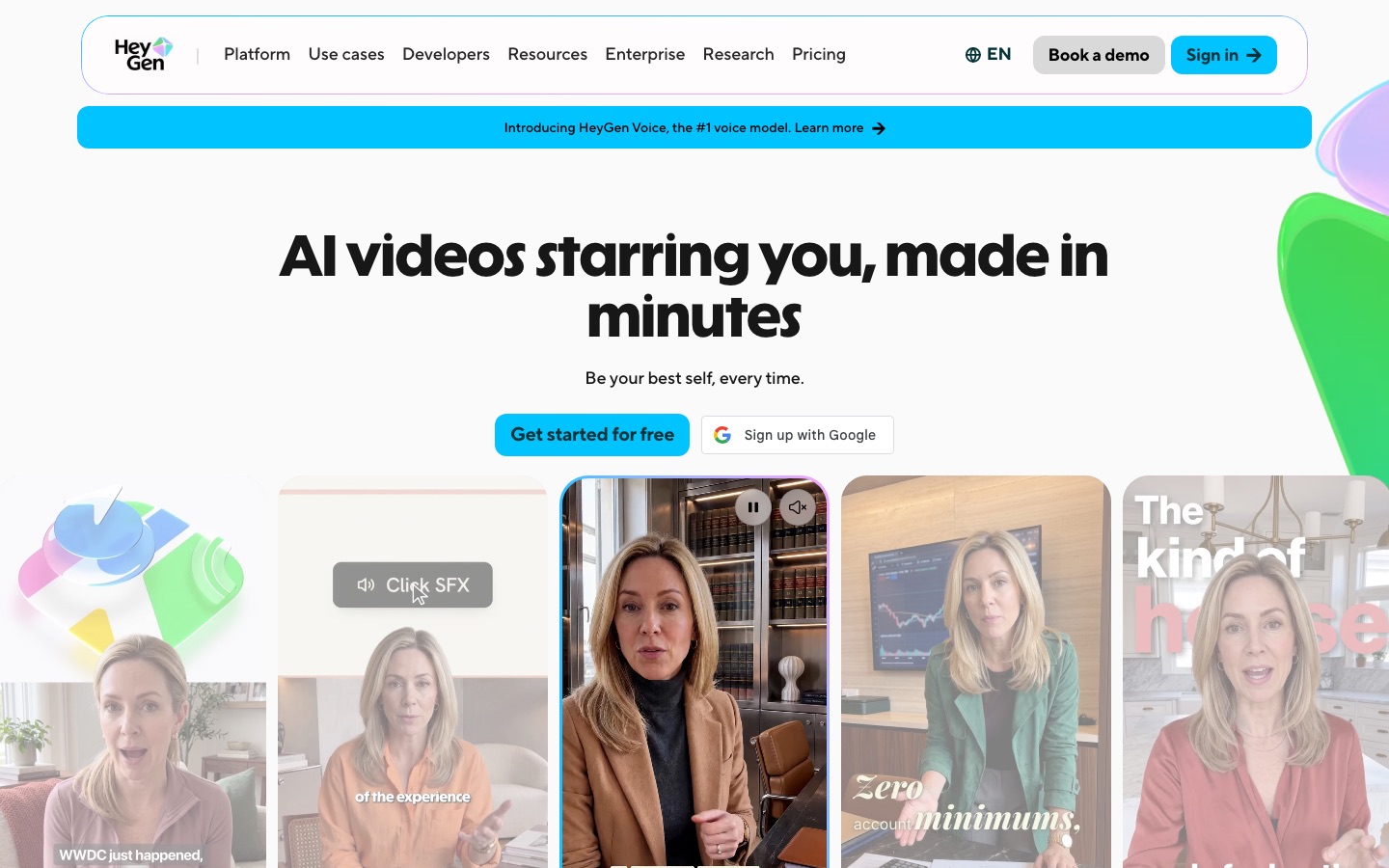
HeyGen in 60 seconds
Free plan: 3 watermarked videos a month, up to 1 minute each, with stock avatars, Avatar IV access, one custom Video Avatar and one voice clone.
Paid plans: Creator $29 a month ($24 billed annually), Pro from $49, Business $149 plus $20 per seat.
Three ways to create: Create Video (you control every scene), Video Agent (one prompt, finished draft), and templates.
Your own avatar: about two minutes of footage for best results, 30 seconds to test, plus a short consent verification clip.
Translation: 175+ languages and dialects, with up to 10 target languages per job.
Credits: everything runs on credits, and cost varies by avatar model, video length and complexity.
Step 1: Sign up and pick the right plan
Go to heygen.com and sign up with Google or email.
Skip the upgrade prompt at first. The free plan is enough to learn the editor and make test videos.
When you need watermark-free exports, longer videos or more avatar usage, upgrade under Plans. Annual billing gives roughly two months free.
HeyGen's plans as of October 2026, per its official pricing page:
| Plan | Price | Credits | Max video length | Key features |
|---|---|---|---|---|
| Free | $0 | 3 videos/mo | 1 min | Watermark, 500+ presenters, Avatar IV access, 1 Video Avatar, up to 3 Photo Avatars, 1 voice clone |
| Creator | $29/mo ($24 annual) | 600/mo | 30 min | 1080p, no watermark, 700+ avatars, Avatar III and IV, limited Avatar V, 175+ languages, unlimited Photo Avatars |
| Pro | From $49/mo | From 1,000/mo | 30 min | Full Avatar V, 4K export, Cinematic Avatars, Seedance 2.5, Veo 3.1 and Nano Banana access |
| Business | $149/mo + $20/seat | 1,500/mo | 60 min | 5+ Video Avatars with Avatar V, 2x Pro concurrency, SSO, SCORM export |
| Enterprise | Custom | Custom | No maximum | 10+ Video Avatars, unlimited voice cloning, SCIM, dedicated support |
On monthly plans, unused credits roll over for one month. On annual plans, they accumulate until renewal. Pro has higher tiers with more credits if you outgrow the base plan.
Step 2: Get to know the HeyGen dashboard
Create Video: the scene-based editor (often called AI Studio) where you build videos script by script.
Video Agent: type a prompt and HeyGen writes, voices, captions and assembles a full video draft.
Avatars: stock avatars, your Video Avatars, Photo Avatars and looks.
Video Translator: translate an uploaded video into other languages with voice cloning and lip sync.
Templates: ready-made layouts for explainers, sales, training and social formats.
Assets: your uploads, brand kit, and HeyGen's built-in media library of music, images and sound effects.
Step 3: Make your first video with a stock avatar
Start simple: one avatar, one scene, a 30-second script.
Click Create Video and choose landscape (16:9 for YouTube, websites and LMS) or portrait (9:16 for Reels, TikTok and Shorts).
Pick an avatar from the library. Filter by setting, outfit or pose so it matches your brand.
Paste your script into the script box for the scene. About 150 words equals one minute.
Choose a voice and language. Preview the first sentence to check accent and pacing before generating the whole thing.
Add a background, your logo, and text or images from Assets.
Click Submit (or Generate). Rendering takes a few minutes depending on length and model.
Download the MP4 or copy a share link from your projects.
Example 30-second script for a product update:
Hi, I'm Maya from the Northwind support team. This week we shipped three updates you asked for. First, you can now export reports to Excel in one click. Second, dark mode is here on mobile. And third, search is about twice as fast. Try them today, and reply to this email with what we should build next.
Step 4: Write scripts that sound natural
Write for the ear. Short sentences, contractions, one idea per sentence.
Use punctuation for pacing. Commas add short pauses, periods add longer ones, and line breaks between scenes give the avatar a natural reset.
Spell out tricky words phonetically or use the editor's pronunciation controls for brand names and acronyms.
Split long scripts into scenes of 20 to 40 seconds. You can fix one scene without re-rendering everything.
Keep the first five seconds strong. State who you are and what the viewer gets.
ChatGPT or Claude can draft a script quickly; ask for a specific length in words, a target audience and a conversational tone, then edit it in your own words.
Step 5: Create your own Video Avatar (formerly Digital Twin)
A Video Avatar is a clone of you that can present any script. HeyGen's newest model, Avatar V, makes the most lifelike version. Creator gets limited Avatar V usage, Pro and up get full access. Follow HeyGen Academy's process:
Open the Avatars tab and click Create Avatar, then Get Started, and read the recording tips.
Decide whether to turn on gesture detection, which saves larger movements as reusable gestures.
Choose your footage source: upload a video, record with your webcam, or record with your phone.
After uploading, choose options such as keeping ambient sound, normalizing volume, removing the background, and 4K export.
Record the short consent verification video on your webcam. HeyGen requires this so nobody can clone a person without permission, and you can complete it after creating the avatar.
Click Submit. HeyGen processes the footage, flags areas to improve, and adds the avatar to your library.
Recording tips for a better avatar
Length: about two minutes of footage gives the best results; 30 seconds is enough for a test.
Camera: a high-resolution camera or a recent smartphone on a tripod, at eye level.
Light: soft, even light on your face from the front, such as a window or a ring light. Avoid strong backlight.
Sound: a quiet room and a clip-on or USB microphone. Your voice clone learns from this audio.
Delivery: talk naturally, pause between sentences with your mouth closed, and avoid exaggerated gestures, which make the avatar look overly animated.
Framing: keep your head and shoulders in frame and do not let hands cover your face.
Want more outfits or settings? Add a Look by uploading another one-minute video or a set of photos. Edit Look, added in August 2026, retouches an existing avatar (skin, makeup, lighting and exposure) without re-recording, and the change applies to every future video.
Step 6: Make a Photo Avatar
No time to film? Upload a single photo, or generate one from a text description, and HeyGen animates it into a talking avatar. Photo Avatars are less natural than a filmed Video Avatar, especially in long videos, but they work well for social clips, illustrated characters and quick tests. The free plan includes up to three; Creator and up include unlimited Photo Avatars.
Step 7: Use Video Agent for prompt-to-video
Video Agent is HeyGen's fastest route to a finished draft. Since the July 2026 update it can produce a full video from one prompt, with script, voiceover, avatar presenter, captions, music and custom motion graphics coded through HyperFrames. It can also turn a website URL into a launch video, or a Figma file into a video that matches your design.
Open Video Agent and describe the video: goal, audience, length, format and tone.
Attach materials: a PDF, a doc, a URL, your logo or product images.
Choose the presenter (stock avatar or your Video Avatar).
Use Storyboard mode to review five proposed angles and key frames before anything renders.
Approve, generate, then open the result in the editor to tweak lines and scenes.
Example prompt: Make a 60-second vertical video for small business owners explaining our new invoice reminders feature. Use my avatar, friendly tone, captions on, end with a call to start a free trial. Use the screenshots I attached.
Video Agent uses premium credits, so draft once, edit the script by hand, and avoid regenerating the whole video for small changes.
Step 8: Translate a video with your voice and lip sync
Video translation is the feature many people choose HeyGen for. It translates speech, clones the speaker's voice and re-syncs the lips to the new language. Per HeyGen's video translation help article, the steps are:
Open Video Translator and upload the video you want to translate.
Select the source language and up to 10 target languages per job.
Choose an engine: Audio Only (voice dubbing, no lip sync, cheapest), Speed (natural lip sync), or Precision (best lip sync, handles speaker changes, side profiles and partly hidden faces better).
Turn on Proofread if you want to review and edit the translated script before the final render.
Generate, then have a native speaker review the result before publishing.
At the time of writing, HeyGen's help center lists Audio Only at about 4 credits per minute, Speed at about 6 and Precision at about 10, billed per target language. A 10-minute video into three languages counts as 30 minutes. Check the credit estimate in your account before you start, since these rates change. For alternatives, see our list of the best AI video translators.
Step 9: Export and share
Resolution: up to 1080p on Creator, 4K on Pro and above.
Formats: download MP4, share a hosted link, or embed the video. Business and Enterprise can export SCORM packages for learning systems.
Captions: turn on captions in the editor so viewers watching on mute can follow along; check the export options if you need a separate subtitle file.
Disclosure: on YouTube, mark realistic AI avatars of real people with the AI use setting in YouTube Studio. Cloning your own voice for narration does not need a label, but an avatar of you saying words you never recorded is safest to disclose.
How to make your HeyGen credits last
Preview before you render. Listen to the first line of each scene to catch wrong voices or pronunciations early.
Use the right avatar model. Older models like Avatar III cost fewer credits than Avatar IV and Avatar V. Use premium models for hero videos, not drafts.
Edit scenes, not whole videos. Fix the one scene that is wrong.
Choose Speed or Audio Only for translation drafts, and Precision only for final, customer-facing versions.
Watch the rollover rule. Monthly plans only carry unused credits for one month.
Common mistakes to avoid
Poor source footage. Your avatar is only as good as the video you record. Bad light and noisy audio show up in every video.
Robotic scripts. Long, formal sentences make even the best avatar sound fake.
One long scene. Multi-minute scenes are hard to fix; break them up.
Skipping a native-speaker check on translated videos.
Cloning someone without consent. HeyGen requires consent verification for custom avatars, and using someone's likeness without permission can be illegal.
Troubleshooting
The avatar's lips look out of sync: use a newer avatar model, shorten the scene, or for translation switch to the Precision engine.
My Video Avatar looks stiff or over-animated: re-record with natural, moderate gestures and steady framing, or turn off gesture detection.
The voice mispronounces a name: spell it phonetically in the script or use pronunciation controls.
My video has a watermark: free plan videos are watermarked; upgrade to Creator or above to remove it.
The video is too long to render: Creator and Pro cap single videos at 30 minutes and Free at 1 minute. Split the content or move to Business for up to 60 minutes.
FAQ
Is HeyGen free to use?
Yes, HeyGen has a free plan with three videos a month, up to one minute each, with a watermark. It includes stock avatars, Avatar IV access, one custom Video Avatar, up to three Photo Avatars and one voice clone. For watermark-free videos up to 30 minutes, the Creator plan costs $29 a month, or $24 a month billed annually.
How do I create my own avatar in HeyGen?
Open the Avatars tab, click Create Avatar, then Get Started. Upload or record about two minutes of yourself talking naturally to camera (30 seconds works for a test), choose processing options, record the short consent verification clip, and click Submit. HeyGen processes the footage and adds your Video Avatar to your library.
What is HeyGen Avatar V?
Avatar V is HeyGen's newest and most lifelike avatar model, released in spring 2026. It powers custom Video Avatars and HeyGen's other video tools. The Creator plan includes limited Avatar V usage, while Pro, Business and Enterprise include full access. Avatar V uses more credits per minute than older models.
How long can HeyGen videos be?
The free plan allows videos up to one minute. Creator and Pro allow up to 30 minutes per video, Business up to 60 minutes, and Enterprise has no maximum. Since July 2026, a single avatar video can run 30 minutes in one pass on Avatar III, IV and V while keeping the face consistent.
Can HeyGen translate my videos into other languages?
Yes. The Video Translator supports 175+ languages and dialects and can translate one video into up to 10 languages per job. It clones your voice and, with the Speed or Precision engine, re-syncs your lip movements. An Audio Only option dubs the voice without lip sync for fewer credits.
Is HeyGen better than Synthesia?
HeyGen is usually the better pick for marketing, social and sales videos, personal avatars and translating real footage. Synthesia is often preferred for structured corporate training with strict governance. Both have strong avatars, so the choice comes down to what you make. Our HeyGen vs Synthesia comparison covers the details.
Bottom line
Learning how to use HeyGen takes an afternoon: make a short stock-avatar video first, then record a clean two-minute clip to build your own Video Avatar, try Video Agent for quick drafts, and use the Video Translator to reach new languages. Start on the free plan, move to Creator when you need watermark-free videos, and go to Pro only if you want full Avatar V and 4K. For more context, read our HeyGen review, the head-to-head HeyGen vs Synthesia comparison, our roundup of the best AI avatar generators, and the full workflow for making AI videos.
Explore more AI avatar, video and translation tools in the AI video category. Built a tool we should list? Submit it for a listing.