Best AI Background Removers (2026): 12 Tools for Clean Cutouts
The best AI background remover depends on the job: remove.bg for the cleanest edges and an API, Photoroom for ecommerce product photos, Pixelcut for unlimited removal on a budget, and Photoshop for full control. Here are 12 picks with free options, pricing and who each one suits, plus free built-in tools you already own.
The best AI background remover for most people in 2026 is remove.bg for the cleanest one-click cutouts, or Pixelcut if you want unlimited background removal for about $10 a month. Online sellers should look at Photoroom, which pairs removal with studio backgrounds, shadows and batch editing. Designers who need pixel-level control should use Adobe Photoshop. And if you only need an occasional transparent PNG, free private tools like Letomix Background Remover or the remover already built into your phone will do the job.
The tools differ a lot on hair and fur, full-resolution downloads, batch limits, watermarks, commercial rights and privacy. This guide ranks 12 tools by what they are best at, based on official pricing pages, help center articles, documentation and public user feedback as of October 2026. We have not run our own lab tests. Every pick links to its listing in our AI tools directory.






Quick picks: the best AI background remover for each job
Best overall for clean edges: remove.bg, with desktop apps, a Photoshop extension and a well documented API.
Best for ecommerce product photos: Photoroom, with AI backgrounds, shadows and batch catalog editing.
Best value, unlimited removal: Pixelcut, unlimited background removal from $8 a month billed yearly.
Best for professional precision: Adobe Photoshop, with Remove Background, Select Subject and hair refinement.
Best if you design in Canva: Canva Magic Studio, one click inside your design on Canva Pro.
Best free daily allowance: Clipdrop, 20 removals every 24 hours on the free plan.
Best for social creators on mobile: Picsart.
Best for private, on-device removal: Letomix Background Remover or Glimbench.
Best simple free tool with touch-up brushes: EasyRemoveBG.
Best for video backgrounds: CutoutClip, with free clips up to 10 seconds.
All 12 picks at a glance
Prices are monthly list prices in USD as of October 2026. Credit-based tools change prices and run promotions often, so confirm on each official site before buying.
| Tool | Best for | Free plan | Starting price |
|---|---|---|---|
| remove.bg | Clean edges, API, desktop batches | Yes, preview-size downloads; 50 free API calls a month | Credits or subscription (check site) |
| Photoroom | Ecommerce product photos | Yes, personal use only | Pro plan (check site); API from $0.02 per image |
| Pixelcut | Unlimited removal on a budget | Yes, limited removals | $10/mo or $8/mo billed yearly |
| Adobe Photoshop | Pro-level masking and compositing | Free trial | Check Adobe's site |
| Canva Magic Studio | Removal inside designs | No, Canva Pro feature | Canva Pro (check site) |
| Clipdrop | Free daily removals, relighting | Yes, 20 per 24 hours | Pro (check site) |
| Picsart | Mobile social editing | Yes, with limits | Check site |
| Cutout.Pro | Many photo and video fixes, one credit system | Yes, limited | Credits (check site) |
| EasyRemoveBG | Quick free cutouts with brushes | Yes, no watermark | Free |
| Letomix | Private in-browser removal | Yes, fully free | Free |
| Glimbench | On-device, full resolution | Yes, unlimited single images | Low-cost Pro for batches |
| CutoutClip | Video background removal | Yes, 3 clips a day up to 10 seconds | One-time fee per longer clip |
How to choose an AI background remover
Four questions narrow the list quickly:
How many images, how often? For a few images a month, a free tool is enough. For a catalog of hundreds, look at unlimited plans (Pixelcut), batch tools (Photoroom, remove.bg desktop apps) or an API.
Do you need full resolution? Many free tiers export a smaller preview or charge credits for the full-size file. If you print, zoom or sell on marketplaces that require large images, check the export limit first.
Is it for business? Some free plans are personal use only. Photoroom's help center, for example, says free accounts cannot be used for commercial purposes.
Does privacy matter? Most tools upload your photo to a server. On-device tools such as Letomix, Glimbench, your phone's built-in remover or open source models keep the image on your machine.
The 12 best AI background removers in detail
1. remove.bg: best overall for clean edges
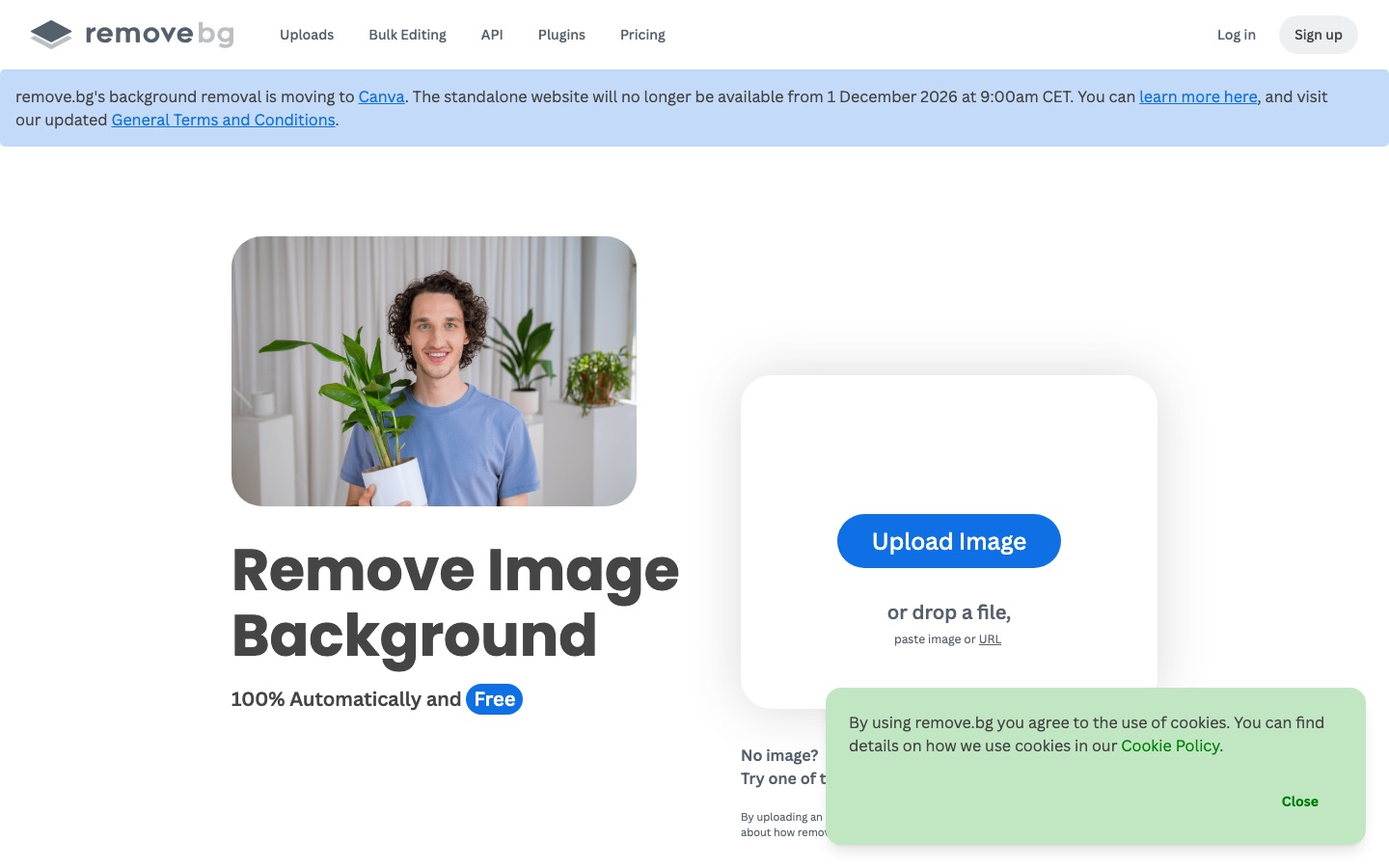
remove.bg, now a Canva brand, is the tool that made one-click background removal mainstream, and it is still the benchmark for edge quality around hair, fur and fine product details. You upload an image and get a transparent cutout in seconds, then swap in a color, a photo or a blurred version of the original. It also offers desktop apps that process whole folders, an Android app, a Photoshop extension and video background removal.
Developers get one of the best documented APIs in the category: according to the remove.bg API page, the first 50 API calls each month are free, and output goes up to 50 megapixels for JPG and WebP (10 megapixels for PNG). Free web downloads are preview size; full-resolution downloads use credits from a subscription or pay-as-you-go pack, priced on the official pricing page.
Pros: excellent edges, desktop batch apps, mature API, plugins.
Cons: full-resolution downloads cost credits, so it gets pricey at volume compared with unlimited plans.
Best for: photographers, marketers and developers who want reliable quality and automation.
2. Photoroom: best for ecommerce product photos
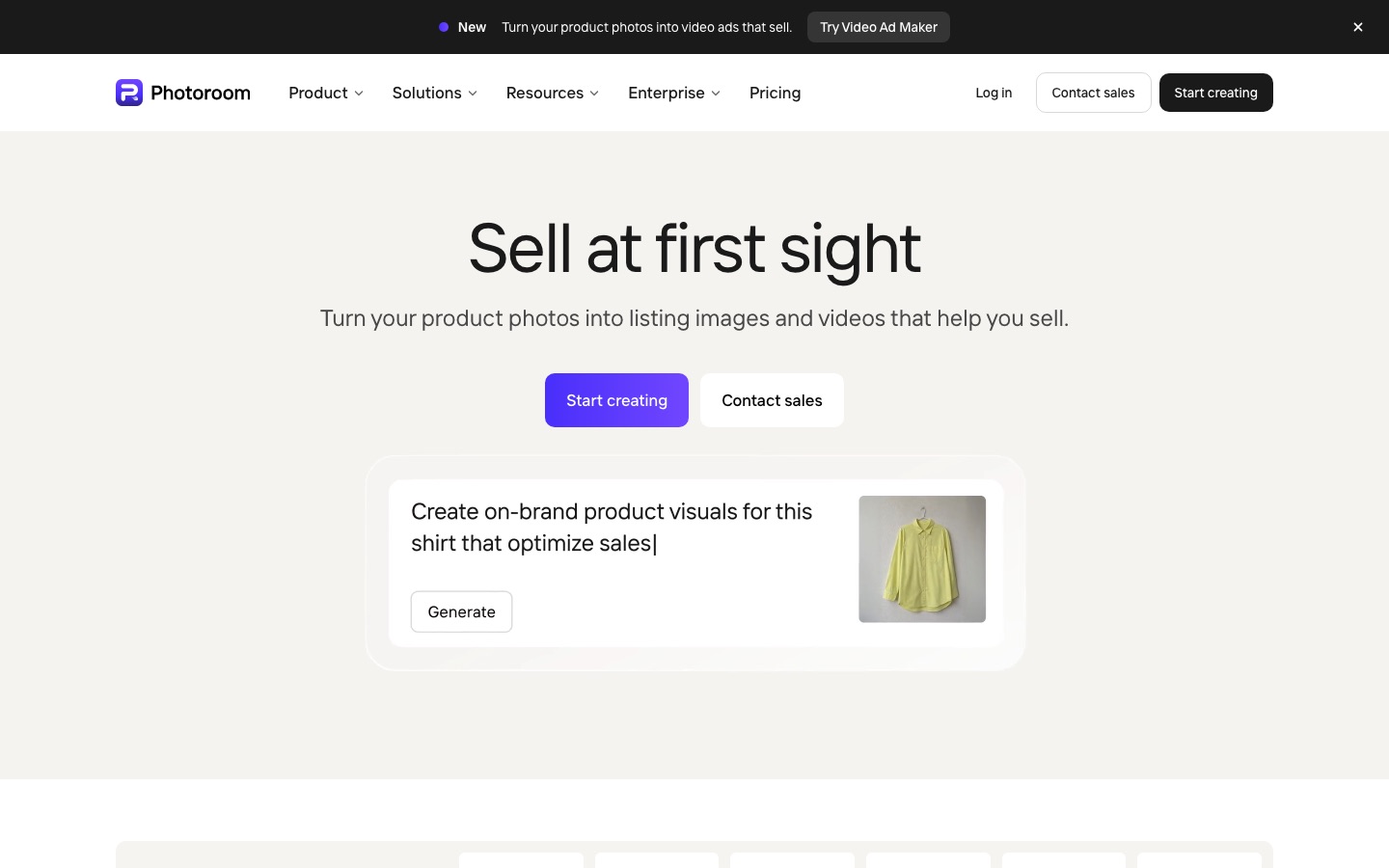
Photoroom grew from a background remover into a full product photo studio for sellers. After removing the background it can add AI-generated scenes, realistic shadows, ghost mannequin and flat lay effects, AI fashion models and marketplace-ready resizing, and batch editing applies the same treatment to hundreds of images. It runs on mobile and the web, with a Shopify app and a team Brand Library.
Paid plans are Pro, Max and Ultra, with monthly AI credit and export allowances (8,000 credits and 1,000 exports on Pro), and yearly Pro and Max plans include a 7-day trial. The free plan is for personal, non-commercial use only. For developers, the Photoroom API charges $0.02 per image for background removal, with 10 free production calls and a watermarked sandbox. See the Photoroom pricing page for current plan prices, and our Photoroom review for a deeper look.
Pros: best all-in-one ecommerce workflow, strong batch tools, cheap API.
Cons: free plan is not for business use; advanced AI features use credits.
Best for: online sellers, marketplace merchants and ecommerce teams.
3. Pixelcut: best value for unlimited removal
Pixelcut is Photoroom's closest rival and the best value pick. According to the Pixelcut pricing page, the Pro plan costs $10 a month, or $8 a month billed yearly, and includes unlimited background removal and upscaling, 600 AI credits a month, 1,000 batch exports a month, a three-person team and a commercial license. Business at $30 a month ($24 billed yearly) raises that to 3,600 credits, 2,000 batch exports and ten people. The free plan includes limited background removal without a watermark.
Pros: unlimited removal at a low price, commercial license, mobile-first.
Cons: batch exports are capped per month; free plan is limited.
Best for: resellers, small brands and anyone removing backgrounds daily.
4. Adobe Photoshop: best for professional precision
Adobe Photoshop is the choice when the cutout has to be perfect. The Remove Background quick action creates a layer mask in one click, Select Subject handles most images automatically, and Select and Mask lets you refine hair, fur and soft edges by hand. The result is a non-destructive mask, and Generative Fill can then replace the background.
Photoshop is part of Creative Cloud plans, and Photoshop on web and mobile is included in Adobe Firefly Pro at $19.99 a month. Check Adobe's site for current Photoshop pricing, and see Adobe Firefly vs Midjourney for more on Adobe's AI tools.
Pros: best control, layer masks, hair refinement, generative fill.
Cons: overkill and expensive if you only need quick cutouts.
Best for: designers, photographers and retouchers.
5. Canva Magic Studio: best if you design in Canva
If your images end up in Canva designs anyway, Canva Magic Studio removes the background with one click right inside the editor, so there is no download and upload step. It also removes video backgrounds. The catch: Background Remover is a Canva Pro feature (also included in Canva's team, education and nonprofit plans), not part of the free plan. Compare it with Picsart in Picsart vs Canva.
Pros: removal inside your designs, video support, strong quality.
Cons: not available on the free plan.
Best for: social media managers, small businesses and teams already on Canva Pro.
6. Clipdrop: best free daily allowance
Clipdrop, created by InitML and now part of Jasper, is a toolbox of single-purpose image tools. According to its pricing page, the free plan allows 20 background removals every 24 hours, and Pro raises that to 1,000 a day with high-resolution output. Relight, Cleanup and Universal Resizer help turn a cutout into a platform-ready image, and there is an API.
Pros: generous free daily quota, useful companion tools, Photoshop plugin.
Cons: high-resolution output requires Pro.
Best for: occasional users and sellers who need relighting and resizing too.
7. Picsart: best for social creators on mobile
Picsart is a social-first creative app with a fast background remover, plus stickers, templates, AI replace, AI expand and a huge effects library. Background removal is available with limits on the free tier, and paid plans unlock more AI features and exports; check the Picsart site for current prices.
Pros: great mobile app, sticker and collage workflows, big template library.
Cons: upsells and limits on the free tier; less suited to large catalogs.
Best for: creators, students and social media users.
8. Cutout.Pro: best for many fixes on one credit system
Cutout.Pro bundles background removal with enhancement, upscaling, object removal, product staging and video background removal, all on one credit balance. It has desktop and mobile apps, a Shopify plugin and an API.
Pros: broad toolset, video removal, pay as you go.
Cons: credit costs vary by tool, so estimate before big jobs.
Best for: sellers and marketers who need several small image tasks handled affordably.
9. EasyRemoveBG: best simple free tool with touch-up brushes
EasyRemoveBG keeps things simple: upload a JPG, PNG or WebP up to 10 MB and 25 megapixels, let the AI cut out the subject, fix edges with Erase and Restore brushes, and download a PNG with no watermark. A bulk tool processes up to 10 images per batch after a Google sign-in, and uploads expire after 24 hours.
Pros: free, no watermark, manual touch-up brushes.
Cons: small batches, fewer extras than paid tools.
Best for: quick cutouts for listings, slides and social posts.
10. Letomix Background Remover: best private free tool
Letomix Background Remover runs a neural network model inside your browser, so according to the site your image is processed on your device rather than sent to a server. It accepts JPG, PNG and WebP files up to 12 MB, exports transparent or colored PNGs, and needs no account or payment, with no watermark.
Pros: completely free, private, no sign-up.
Cons: best with one clear subject; no batch mode.
Best for: privacy-conscious users, avatars and simple product shots.
11. Glimbench: best on-device tool at full resolution
Glimbench is a small suite of on-device tools whose background remover returns transparent PNGs at original resolution with no watermark. The free tier covers unlimited single images, and a low-cost Pro plan adds larger batches, marketplace presets and a higher quality model on WebGPU devices.
Pros: full resolution for free, private processing, marketplace presets on Pro.
Cons: quality depends on your device; fewer creative extras.
Best for: sellers who want private, full-size cutouts without a subscription.
12. CutoutClip: best for video backgrounds
CutoutClip removes backgrounds from MP4, MOV and GIF clips without a green screen and exports transparent WebM files. Clips up to 10 seconds are free, three a day, with no sign-up. Longer videos up to two minutes cost a one-time fee per clip, and paid results add green screen MP4 and ProRes 4444 with alpha.
Pros: no green screen needed, free short clips, pro export formats.
Cons: longer clips cost per video.
Best for: creators making overlays, memes and short promos.
Free background removers you already have
Before paying, try the free, private tools built into your devices:
iPhone and iPad: touch and hold the subject of a photo in Photos to lift it out, then copy, share or save it as a sticker.
Mac: in Preview, open an image and choose Remove Background from the Tools menu, or use the Quick Action in Finder.
Windows: the Paint app has a Remove Background button, and the Photos app can blur or remove backgrounds.
ChatGPT: ChatGPT can generate new images with transparent backgrounds. Asking it to cut out an uploaded photo works, but it regenerates the image, so small details can change. Use a real remover when accuracy matters. See ChatGPT vs Midjourney for more on its image tools.
Open source option for developers
Developers can run background removal locally with rembg, an MIT-licensed tool that works as a command line app, Python library or HTTP server. It supports U2-Net, BiRefNet and other models. Note that each model has its own license: BRIA's RMBG-2.0, for example, is free for non-commercial use only and needs a paid agreement for commercial projects.
Feature comparison of the top six
| Feature | remove.bg | Photoroom | Pixelcut | Photoshop | Canva | Clipdrop |
|---|---|---|---|---|---|---|
| Free removal | Preview size | Personal use | Limited | Trial | No (Pro) | 20 per day |
| Batch processing | Desktop apps, API | Yes | Yes, capped exports | Actions | Check site | API |
| Unlimited plan | No, credits | Plan allowances | Yes, on Pro | Yes | Yes, on Pro | 1,000 per day on Pro |
| AI backgrounds and shadows | Basic | Yes | Yes | Generative Fill | Yes | Relight |
| Video removal | Yes | Product video tools | Check site | No | Yes | No |
| API | Yes, 50 free calls a month | Yes, $0.02 per image | Yes | No | No | Yes |
Tips for a cleaner cutout
Shoot against contrast. A plain background that differs in color and brightness from your subject gives every AI model an easier job.
Start with the largest image you have. Upscaling after removal blurs edges; remove first from the original, then upscale if needed with a tool from our list of the best AI image upscalers.
Zoom in on hair, fur and straps. Use a refine or restore brush on fine details instead of rerunning the whole image.
Export PNG or WebP for transparency. JPG does not support transparent backgrounds and fills them with white.
FAQ
What is the best free AI background remover?
For quick free cutouts, Clipdrop gives 20 removals a day, EasyRemoveBG and Letomix are free with no watermark, and Glimbench keeps full resolution on your device. Your phone or computer may also have one built in: iPhone Photos, Mac Preview and Windows Paint all remove backgrounds for free.
Is remove.bg free?
Partly. You can remove backgrounds on the remove.bg website for free and download a preview-size image. Full-resolution downloads use credits from a subscription or pay-as-you-go pack. Developers get 50 free API calls a month, with output up to 50 megapixels.
Is Canva's background remover free?
No. Canva's Background Remover is a Canva Pro feature, also included in Canva's team, education and nonprofit plans. Free users can try Canva-owned remove.bg instead, which offers free preview-size downloads on its website.
How do I remove a background without losing quality?
Start from the largest original image, use a tool that exports at full resolution (remove.bg with credits, Pixelcut Pro, Photoshop or Glimbench), and save as PNG or WebP to keep transparency. Avoid free tiers that only export previews, and upscale after removal only if you must.
Can ChatGPT remove the background from an image?
ChatGPT can create new images with transparent backgrounds and can attempt to cut out an uploaded photo. Because it regenerates the image rather than masking it, faces, logos and small details can change. For product photos or anything that must stay accurate, use a dedicated background remover.
Are online background removers safe for private photos?
Most online tools upload your image to their servers, and policies on storage vary; EasyRemoveBG, for example, deletes uploads after 24 hours. For sensitive photos, use an on-device option such as Letomix, Glimbench, your phone's built-in tool or open source rembg, which never send the image anywhere.
Bottom line
For most people, remove.bg is the best AI background remover for clean, reliable cutouts, and Pixelcut is the best value if you remove backgrounds every day. Online sellers will get the most from Photoroom, which turns a cutout into a finished product photo, while designers who need perfection should stay in Adobe Photoshop. If you only need the occasional transparent PNG, start free with your phone's built-in tool, Clipdrop or a private in-browser remover like Letomix before paying for anything.
Find more photo editors, upscalers and product photo tools in the AI image tools category, or read our guides to the best AI image editors and the best AI product photo generators. If you build a background remover we have missed, you can submit it for a listing.