Best AI Subtitle Generators (2026): 11 Tools for Accurate, Styled Captions
The best AI subtitle generator depends on your video: Descript for editing and captions in one place, VEED for quick browser subtitles and SRT files, Submagic or Captions for animated short-form captions, and Happy Scribe when accuracy and pro formats matter. Here are 11 picks with current pricing, languages and export formats.
The best AI subtitle generator for most people in 2026 is Descript if you also edit your videos, or VEED if you just want accurate subtitles and an SRT file from the browser. Short-form creators who want bold, animated word-by-word captions should use Submagic or Captions. When accuracy, broadcast formats or human review matter, Happy Scribe is the professional choice, and Subtitles.app is the cheapest at $0.99 an hour.
Modern AI subtitle generators transcribe speech, time each line to the audio, and let you style, translate and export captions in minutes. They differ in accuracy on accents and jargon, how many languages they handle, which file formats they export, and whether they burn stylish captions into the video or hand you a clean subtitle file. This guide is based on official pricing pages, documentation and public user feedback as of October 2026, not hands-on testing. Each tool links to its listing in our AI tools directory.



Quick picks: the best AI subtitle generator for each job
Best overall for creators who edit: Descript, with captions generated from the transcript you edit.
Best browser subtitle generator: VEED, with SRT, VTT and TXT export and translation.
Best animated captions for Shorts and Reels: Submagic, from $12 a month billed annually.
Best captions app for phones: Captions, with 100+ caption templates and 100+ languages.
Best for accuracy and professional formats: Happy Scribe, with optional human-made subtitles.
Best free-first editor with auto captions: CapCut.
Cheapest pay-as-you-go: Subtitles.app, $0.99 per hour of media.
Best for captions on clips from long videos: OpusClip.
Best free option for YouTubers: YouTube's built-in automatic captions.
All picks at a glance
Prices are monthly list prices as of October 2026. Several tools offer large discounts for annual billing, and some prices vary by region or app store.
| Tool | Best for | Free plan | Starting paid price |
|---|---|---|---|
| Descript | Edit and caption in one place | 60 media min/mo, 720p, watermark | $24/mo ($16 annual) |
| VEED | Browser subtitles and files | Yes, watermarked | Check site (paid needed for SRT download) |
| Submagic | Animated short-form captions | Free trial | $19/mo ($12 annual) |
| Captions | Phone creators | Yes, 1 caption template | $24.99/mo (iOS) |
| Happy Scribe | Accuracy, pro formats, human option | 10-min trial | $17/mo ($8.50 annual) |
| CapCut | Free-first editing | Yes | About $9.99/mo (varies) |
| Subtitles.app | Pay as you go | Files up to 30 min | $0.99 per hour |
| OpusClip | Captioned clips | Yes, watermarked | $15/mo |
| Gling | YouTubers cutting long videos | 1 hour/mo, watermark | $20/mo ($10 annual) |
| Rev | Human-verified captions | Check site | Check site |
| YouTube auto captions | Free captions on YouTube | Free | Free |
How to choose an AI subtitle generator
Open or closed captions? Burned-in (open) captions are part of the video, which social platforms favor because many people watch muted. Closed captions are a separate file (SRT or VTT) viewers can switch on, which is better for YouTube, courses and accessibility. Some tools only do one.
Which export formats? Most creators need SRT. Video platforms and e-learning tools often want VTT. Broadcasters and post houses may need STL, XML or EDL, which narrows the list to professional tools like Happy Scribe.
How many languages, and do you need translation? Transcription language counts range from 25 (Descript) to 150+ (Happy Scribe). Translated subtitles are cheap; dubbed audio is a different job, covered in our best AI video translators guide.
How accurate must it be? AI handles clear speech well but stumbles on names, jargon and crosstalk. For legal, medical or broadcast work, pick a tool with human proofreading.
The best AI subtitle generators in detail
1. Descript: best overall for creators who edit
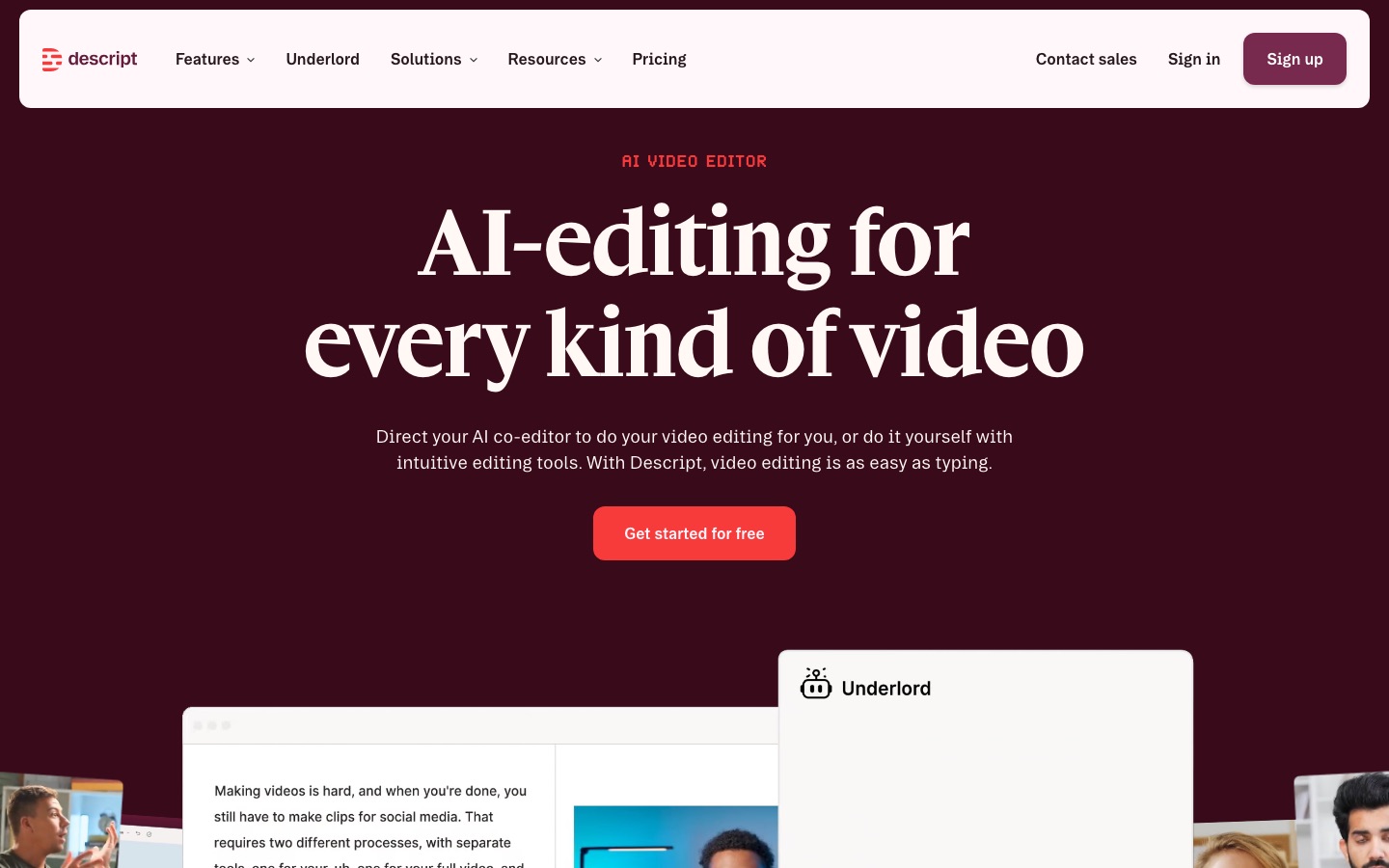
Descript transcribes your media, lets you edit the video by editing the text, and generates captions that stay in sync with every cut. That is the key advantage: you fix a transcription error once and the subtitle is fixed too. It transcribes 25 languages, offers caption translation into 61 languages and audio dubbing, and includes unlimited dynamic (animated) captions on every plan.
Per the Descript pricing page, the free plan includes 60 media minutes a month with watermarked 720p exports. Hobbyist is $24 a month ($16 annual) for 10 media hours, Creator is $35 ($24 annual) for 30 hours, and Business is $65 ($50 annual) with translation proofreading.
Pros: captions and editing in one workflow, excellent for talking-head and podcast video.
Cons: only 25 transcription languages, and media-hour limits matter for heavy users.
Best for: YouTubers, podcasters and course creators. Compare it with CapCut in Descript vs CapCut.
2. VEED: best browser subtitle generator
VEED is the fastest route from upload to subtitle file. Its auto subtitle generator supports 125+ languages, claims up to 99.9% accuracy on clear audio, and exports SRT, VTT or TXT, or burns styled captions into the video. Translation into other languages is a click in the same panel. VEED's FAQ says paid plans include unlimited subtitle generation within a 50-hour monthly fair-use limit.
The free tier lets you try auto subtitles, but downloading subtitle files and subtitling longer videos requires a paid plan, and continued translation needs Pro. VEED's prices have changed several times in 2026, so confirm current tiers on the VEED subtitle generator page and pricing page.
Pros: quick, no install, broad language support, good styling and a full editor alongside.
Cons: file export and translation sit behind paid plans, and pricing has moved often.
Best for: marketers and teams who want subtitles without learning an editor. See our VEED review.
3. Submagic: best animated captions for short-form
Submagic is built for the punchy, word-highlighted captions that dominate TikTok, Reels and Shorts. It adds emoji, keyword highlights, auto zooms, B-roll and sound effects, and translates captions. Per the Submagic pricing page, Starter is $19 a month ($12 annual) for 15 videos up to 2 minutes, Pro is $39 ($23 annual) for 40 videos up to 5 minutes with premium templates and Storyblocks B-roll, and Business is $69 ($41 annual) for 100 videos up to 30 minutes. There is no watermark on paid plans.
Pros: best-looking short-form caption styles, B-roll and zooms included.
Cons: tight video length caps on Starter, and not meant for long-form closed captions.
Best for: short-form creators and social media managers.
4. Captions: best captions app for phones
Captions began as the go-to mobile captions app and is now a full AI video studio. It generates captions in 100+ languages with 100+ templates on paid plans, translates subtitles, corrects eye contact, trims filler words and pauses, and offers AI avatars. Max costs $24.99 a month on iOS and includes 500 credits; the free tier gives one caption template and basic editing. Our Captions vs Submagic comparison covers which to choose.
Pros: record, caption and edit on your phone, strong creator features.
Cons: pricier than caption-only tools, and plans differ by platform.
Best for: creators who film and post from a phone.
5. Happy Scribe: best for accuracy and professional formats
Happy Scribe is the professional option. AI transcription covers 150+ languages and dialects, AI translation 80+ languages, and you can order human-made subtitles (from $2.00 a minute, 99% accuracy claimed) proofread in 65+ languages. Pro plans export TXT, SRT, VTT, STL, XML, FCPXML, EDL and more, which matters for broadcast and post-production.
Per the Happy Scribe pricing page, Basic is $17 a month ($8.50 annual) for 120 AI minutes, Pro is $29 ($19 annual) for 600 minutes and every export format, and Business is $89 ($59 annual) for 6,000 minutes. Extra minutes cost $0.20 each.
Pros: widest language coverage, pro formats, human option for critical work.
Cons: no animated social caption styles, and the free plan is only a 10-minute trial.
Best for: agencies, broadcasters, journalists and accessibility compliance.
6. CapCut: best free-first editor with auto captions
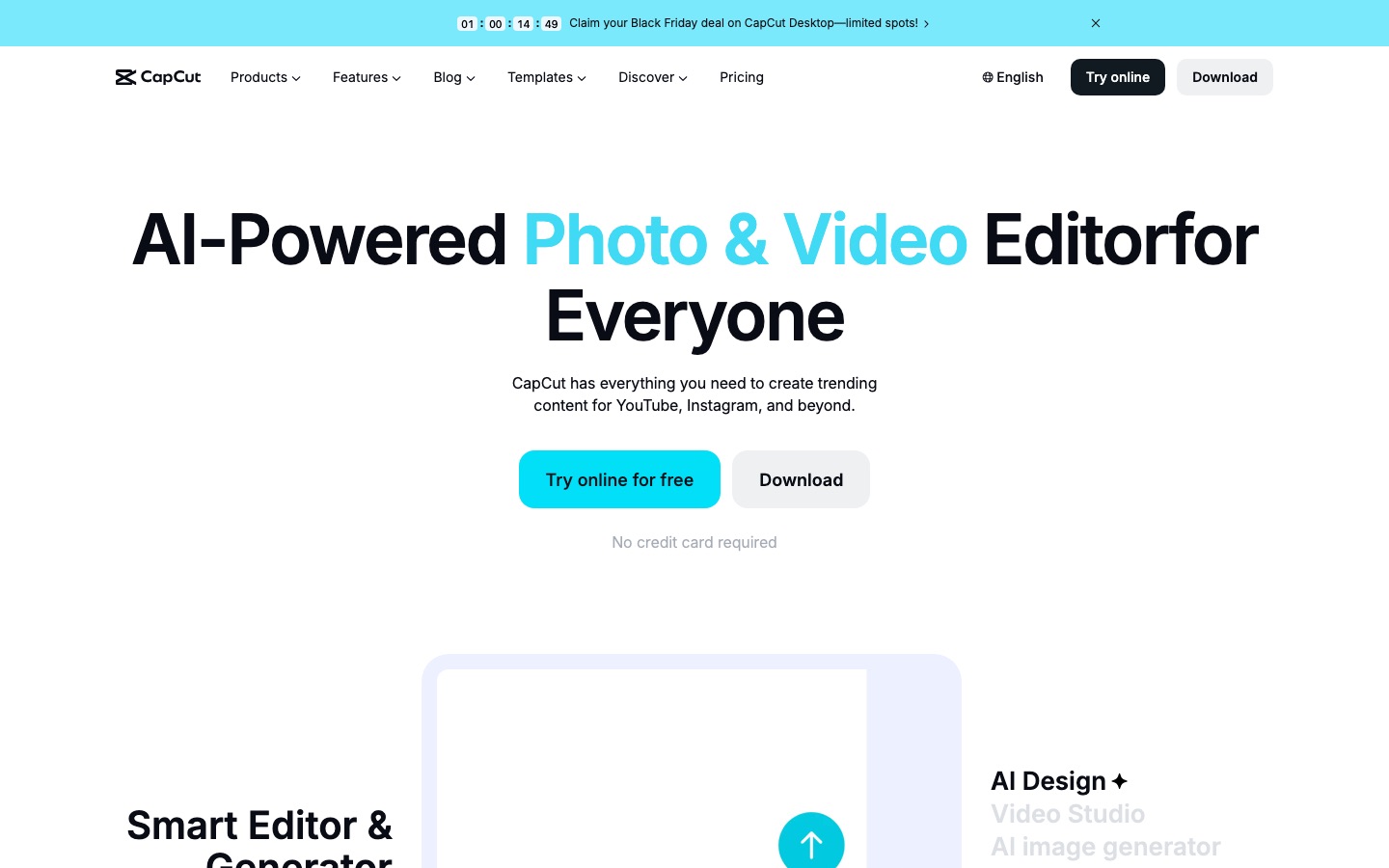
CapCut, from ByteDance, is a free-first editor on mobile, desktop and web with auto captions, caption templates, text-to-speech and translation. Its free plan remains usable, but some features (reportedly including auto captions in certain regions) now require Standard at about $9.99 a month or Pro at about $19.99, and prices vary by country and app store. Some companies restrict ByteDance apps, so check your policy.
Pros: free to start, great trending caption styles, full editor.
Cons: paywalls and prices vary by region, and data policies concern some teams.
Best for: TikTok and Reels creators on a budget.
7. Subtitles.app: cheapest pay-as-you-go
Subtitles.app transcribes, translates and subtitles in the browser with no subscription. Per the Subtitles.app pricing page, free use handles files up to 30 minutes and 1 GB, while Pro costs $0.99 per hour of media, with credit that never expires. Pro adds the highest accuracy model, speaker identification, a subtitle editor, translation with DeepL integration and API access. Full-length 1080p video exports with burned-in subtitles cost $1.00 an hour.
Pros: extremely cheap, no subscription, API included.
Cons: basic styling compared with Submagic or Captions.
Best for: anyone who needs accurate SRT files occasionally or in bulk.
8. OpusClip: best for captions on clips from long videos
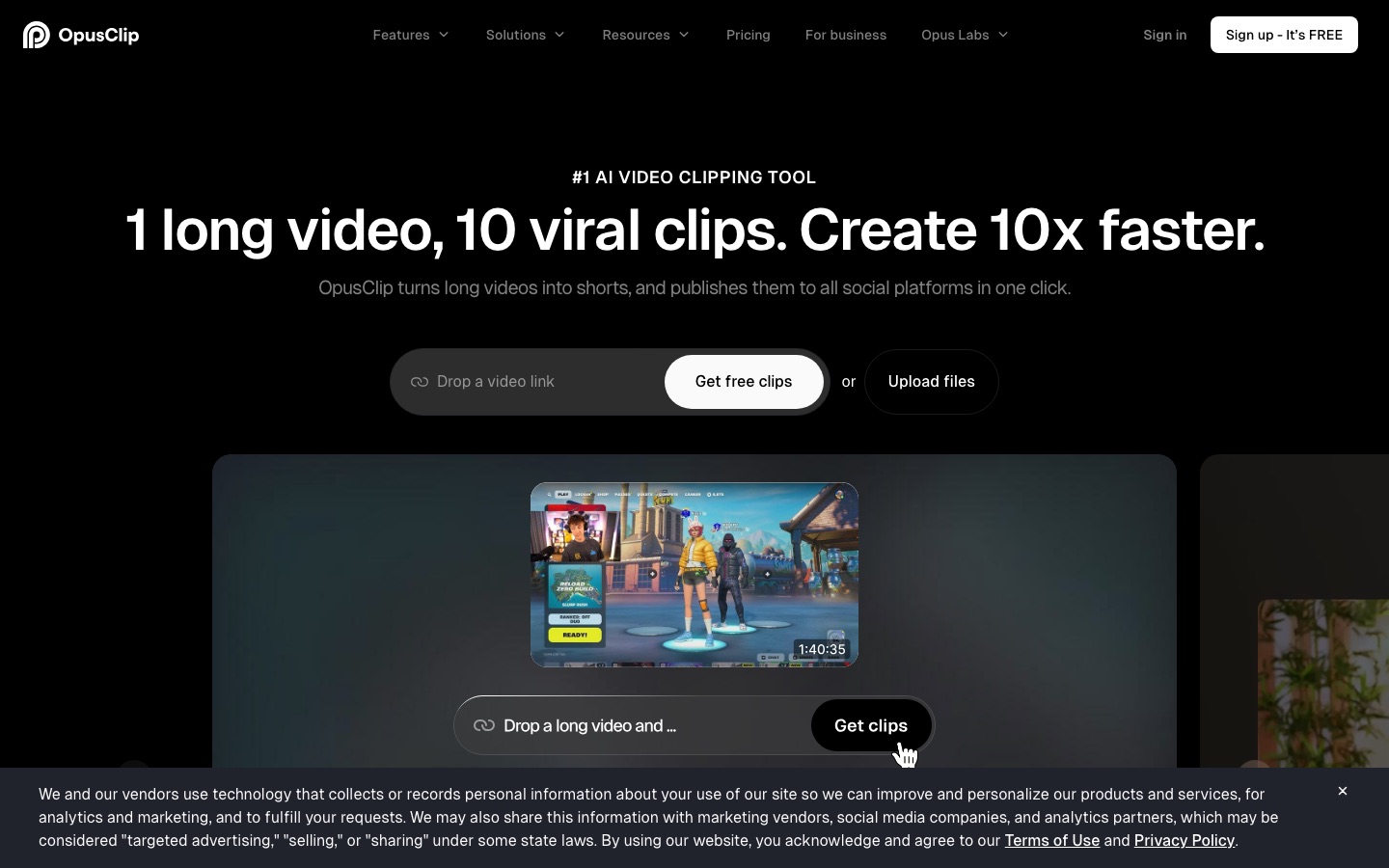
OpusClip is a clipping tool first: it finds the best moments in a long video, reframes them vertically and adds animated, multi-language captions. Free exports are watermarked and expire after 3 days; Starter at $15 a month removes the watermark and adds auto-posting to YouTube Shorts, TikTok and Instagram, and Pro at $29 adds custom fonts and AI B-roll. Our Vizard vs OpusClip vs Munch comparison covers the alternatives.
Pros: captions and clips in one step, auto-posting.
Cons: not a subtitle tool for full-length videos.
Best for: podcasters and streamers repurposing long recordings.
9. Gling: best for YouTubers cutting long videos
Gling removes silences, filler words and bad takes from talking-head footage, then generates AI captions and SRT subtitles and exports XML timelines to Premiere, Final Cut or Resolve. Plus is $20 a month ($10 annual) for 10 hours, Pro is $40 ($20 annual) for 30 hours. The free plan is 1 hour a month with a watermark.
Pros: rough cut and subtitles together, works with pro editors.
Cons: captions are a side feature, with few styling options.
Best for: YouTubers who record long talking-head videos.
10. Rev: best for human-verified captions
Rev is known for transcription trusted by courts and newsrooms, and it sells both AI captions and human-verified captions for accessibility compliance. It is the pick when a caption error has real consequences. Rev's plans and per-minute rates change, so check the official site for current pricing.
Pros: human accuracy, compliance-friendly, long track record.
Cons: human captions cost far more than AI-only tools.
Best for: legal, education and enterprise accessibility.
11. YouTube automatic captions: best free option for YouTubers
YouTube generates automatic captions for long-form videos and Shorts in dozens of languages, including English, Spanish, French, German, Japanese and Korean, and English videos can get expressive captions that mark sighs, gasps and background sounds. Per YouTube Help, you should review and fix them in YouTube Studio, and they can fail on long videos, poor audio, long silences or overlapping speakers. Uploading your own corrected SRT from any tool above usually beats leaving auto captions as they are.
Pros: free and automatic.
Cons: variable accuracy, no styling, YouTube only.
Best for: every YouTuber as a baseline.
Feature comparison
| Tool | Languages | Export formats | Translation | Animated captions |
|---|---|---|---|---|
| Descript | 25 transcription | SRT, VTT, burned-in | 61 languages | Yes |
| VEED | 125+ | SRT, VTT, TXT, burned-in | Yes (Pro) | Yes |
| Submagic | Check site | Burned-in | Yes | Yes, best in class |
| Captions | 100+ | Burned-in, transcript | Yes | Yes |
| Happy Scribe | 150+ | SRT, VTT, STL, XML, EDL and more | 80+ languages | No |
| Subtitles.app | Check site | SRT and others, burned-in | Yes, DeepL | Basic |
| Gling | Check site | SRT, XML timelines | No | Basic |
Tips for better AI subtitles
Fix the audio first. A cleanup pass in Adobe Podcast or a similar tool can noticeably reduce transcription errors.
Add a custom vocabulary of names, brands and jargon where the tool supports it, then search the transcript for each one.
Keep lines short. Many broadcast style guides cap lines at about 42 characters and two lines per caption. For vertical video, 1 to 3 words per caption reads best.
Upload closed captions even if you burn in open ones. A separate SRT on YouTube helps accessibility and gives search engines your transcript.
Mind the safe zone. On TikTok and Reels, place captions above the bottom UI and away from the right-side buttons.
Proofread translations with a native speaker for anything customer-facing.
FAQ
What is the best AI subtitle generator?
Descript is the best AI subtitle generator for creators who also edit, because captions follow every edit of the transcript. VEED is best for quick browser subtitles and SRT files, Submagic and Captions for animated short-form captions, and Happy Scribe when you need accuracy, 150+ languages and professional formats.
Is there a free AI subtitle generator?
Yes. YouTube auto captions are free, CapCut and VEED offer free auto subtitles with limits, Descript includes 60 free media minutes a month, and Subtitles.app transcribes files up to 30 minutes free. Free plans usually watermark exported video or restrict subtitle file downloads, so check before you rely on one.
How accurate are AI subtitles?
On clear, single-speaker audio, AI subtitles are usually very accurate and need only light proofreading. Accuracy drops with accents, background music, crosstalk, brand names and technical terms. Vendors claim figures as high as 99%, but treat those as best-case numbers and always review captions before publishing.
How do I generate an SRT file from a video?
Upload the video to a subtitle generator such as VEED, Descript, Happy Scribe, Gling or Subtitles.app, let it transcribe, correct the text in the editor, then choose export or download subtitles and pick SRT. Upload that file to YouTube or your video platform as closed captions.
What is the difference between subtitles and captions?
Subtitles usually transcribe or translate dialogue for viewers who can hear but may not understand the language. Closed captions also describe sounds, music and speaker changes for deaf and hard-of-hearing viewers. Open captions are burned into the video, while closed captions are a separate file viewers can toggle on.
Which subtitle generator is best for YouTube Shorts and TikTok?
Submagic and Captions make the best animated, word-highlighted captions for short-form, with CapCut as the budget option. If you are cutting Shorts from long videos, OpusClip adds captions while it clips. Keep captions short, centered and clear of the platform's on-screen buttons.
Final verdict
Pick Descript if you edit your own videos, since fixing the transcript fixes the subtitles. Pick VEED for fast browser subtitles and SRT files, Submagic or Captions for scroll-stopping short-form captions, Happy Scribe for accuracy, languages and broadcast formats, and Subtitles.app when you just want cheap, accurate files. Whatever you choose, proofread names and jargon before you publish.
Related reading: best AI transcription software, best AI video editors, best AI video translators and our best AI YouTube tools roundup.
Browse every captioning and editing tool we track in the AI video category and transcription tools in AI audio. Building a subtitle tool we have missed? Submit it for a listing.